
Tags within a task will be shown as x, y, z coordinates. Activities (such as spot weld activities) and IO signals can be translated from a robot task into an offline program, including the call activity. Attributes of activities can also be translated into a program. Among the attributes of the activities supported for downloading are home positions for spot weld activities.
Unparsed robot language commands can also be added to the comment fields with a "Robot Language:" prefix which will distinguish them from standard comments. The Robot Language: prefix will automatically be added while importing and removed during robot program creation.


-
Click Create Robot Program
 .
. -
Select a robot task. These tasks include:
- Follow Path activities
 The
robot type in the Select Robot Type box should match that of
the robot selected. The default value for the dialog box is defined by
using Tools > Options > Offline
Programming > Default Translator, and can be changed from the
Robot Program dialog box by selecting the correct robot type in the
Select Robot Type box. You must verify that the robot type matches that
of the selected robot.
The
robot type in the Select Robot Type box should match that of
the robot selected. The default value for the dialog box is defined by
using Tools > Options > Offline
Programming > Default Translator, and can be changed from the
Robot Program dialog box by selecting the correct robot type in the
Select Robot Type box. You must verify that the robot type matches that
of the selected robot.
-
A Downloading Method dialog box appears.
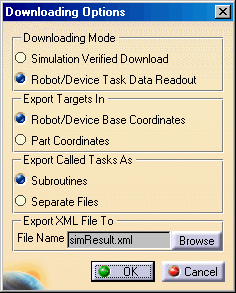
- Robot Base Coordinates references the robot's base coordinates.
- If Part Coordinates are selected, then all the tag targets referenced by robot motion activities will be defined in the downloaded program with respect to the base coordinate frame of the product that owns the tag group of which the tag being downloaded is a member.
- Export Called Tasks can be downloaded as subroutines or as separate programs contained in separate files.
- Export XML File To - By default, the File Name will display the standard XML filename used in OLP download "simResult.xml". There are two ways that you can specify the file name. You can directly enter the desired XML file name. In that case, it will be stored by that name in folder specified in OLP Settings for Downloader ("Save XML File In"), or you can use the Browse button to view the standard Save File dialog and open the folder that was specified for XML files through the OLP Settings for Downloader ("Save XML File In").
- Additionally, you can set the default XML file name via the Tools > Options > Resource Detailing > Offline Programming tab.
-
Select the preferred method and click OK.
Before downloading, OLP runs a background simulation of the robot task. In some cases, such as when a robot's reaching certain tags depends upon the workings of a different resource's program, the task simulation may report that the robot cannot reach the tags. The download will then stop.
If a robot task selected for download has been previously set as an active task for a resource in the process context, users will see the following dialog box:
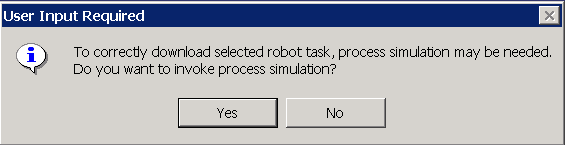
Users can choose:
- to automatically run the process simulation and therefore to bridge described task simulation shortcomings, i.e., press YES.
- to proceed with download based on robot task simulation, if they consider that selected robot task for download does not have any inter-dependency on other resource tasks, i.e., press NO.
The system generates a robot program, which appears in the Robot Program message window.
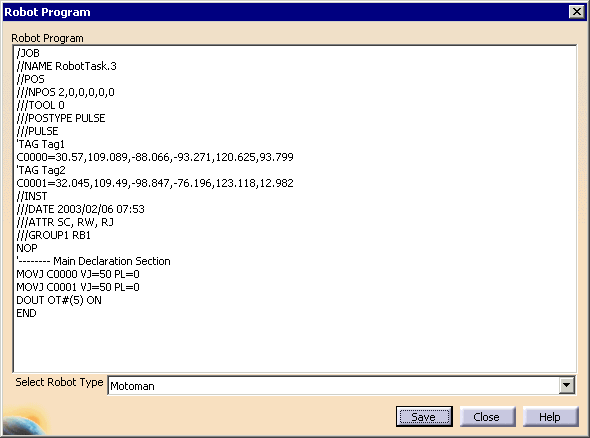
 Changing
the Select Robot Type option will result in a different program appearing
in the screen.
Changing
the Select Robot Type option will result in a different program appearing
in the screen.
-
Select the Save button.
A dialog box appears so that you can navigate to the directory in which you wish to save the program.
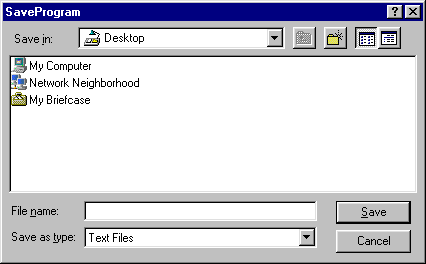
-
Navigate to the correct directory and save the file.
This
file, or a modified version of it, can be loaded back onto V5 using the
Import Robot Program command. If comments
have been added to the program, including comments written in Kanji
characters, they can be roundloaded -- that is, imported into V5,
exported into a native robot language or XML, and re-loaded into V5.
In V5, comments appear in Attributes sub-node of the Task List node on
the PPR tree.
For more information about parameter mapping and other data for a specific robot type, see Defining Controller-Specific Data.
Do not try to upload a previously downloaded robot program if the robot motion activities of the robot task reference tags stored in tag groups owned by more than one product. During upload, you can select only one part with respect to whose base coordinate frame all the tags will be created. This would make an asymmetrical roundload.
Identifying Frames of Reference for Tag Targets
A frame of reference for a tag target, relevant for both upload and download, depends on the values of both object and tool frame profiles associated with the robot motion activity that contains that tag. There are four different cases here:
- If the object frame offset is zero and tool is mobile (mounted on a robot), the frame of reference is the robot base frame.
- If the object frame offset is non-zero and tool is mobile, the frame of reference is the object frame (with its offset defined with respect to the World frame). In the case of tag targets, if Apply To All Targets button is turned on, robot target will be shifted from the tag location by the value of the object frame offset.
- If the object frame offset is zero and tool is stationary (fixed TCP case), the frame of reference is the robot's mount frame.
- If the object frame offset is non-zero, the tool is stationary, and Apply To All Targets button is selected when a referenced object frame profile was created, the frame of reference is the object frame. In this case, robot target will be shifted from the tag location by the value of the object frame offset. If the Apply To All Targets button was turned off, the frame of reference is the same as above; the robot's mount frame.
NOTE: These frames of reference are relevant only for OLP XML. Individual robot language translators may use different frames of reference based on robot language specification.
