
Modified processes can be saved back into the Manufacturing Hub database via the File > Save menu item.

-
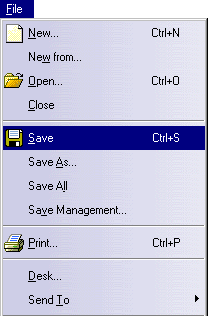
After modifying a PPR, select File > Save from the menu bar to save the process back into the Manufacturing Hub database:
Notes
-
Saving a process document (.CATProcess) loaded from the Manufacturing Hub to the file system using the File > Save As command is not recommended.
-
Saving an activity file (.act) associated to the process document (.CATProcess) to the file system using the File > Save As command is not recommended. Any detailings subsequently created or saved may become corrupted and the user may not be able to open them in future sessions. In the event that a detailing has been corrupted, there is no safe method to repair it.

If an activity (.act) file is saved to a local directory (via File > Save As), the user will be able to load that particular detailing in future sessions. This is still not recommended, as no other client will be able to load that detailing. -
Invoking and editing the PERT or Gantt chart on a process in DPM may modify process(es) in the parent hierarchy of the current process. If the affected processes in the parent hierarchy are not write-locked in DPM (when they are loaded as parent processes in DPM), any modification(s) made to them cannot be saved. In this case, a warning message is displayed at the end of the save procedure to inform the user.
-
Automatic Save (Warmstart) will not occur when a Structure Exposed document is loaded within a DELMIA session. Automatic Save will be deactivated (if it is turned ON) until the Structure Exposed documents have been unloaded. When the first automatic save is cancelled, a Warning box is displayed advising that Warmstart has been deactivated and also list the documents that are stored as Structure Exposed. Further cancellations of automatic saves will not display any warnings. Once all Structure Exposed documents have been unloaded, a Warning box is displayed advising that Warmstart has been reactivated and documents stored as Structure Exposed have been unloaded. In Case of Manufacturing Hub "Activity Library" file (.act) is "Structure Exposed" and hence Automatic Save is disabled.
-
Whenever the connection to the Manufacturing Hub server is lost for a given client. In that situation, if you try to use command that requires a communication with the server (like Save, Extended Properties, Search, Import…), a panel is displayed to show the lost connection and to re-establish this connection. If you accept, the connection reconnects the client to the server, re-opens transactions for all the currently opened documents coming from the Hub and then you can continue to work. If it fails to reconnect, then a message t displays that we cannot reconnect is displayed.
