
The attributes of all process, product and resource objects may be viewed and edited as they are stored in the Manufacturing Hub.

Viewing Manufacturing Hub Attributes
-
Click the Open Extended Property dialog box command
 .
. -
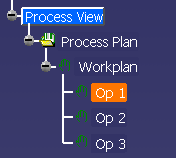
Select the desired product, process, or resource:
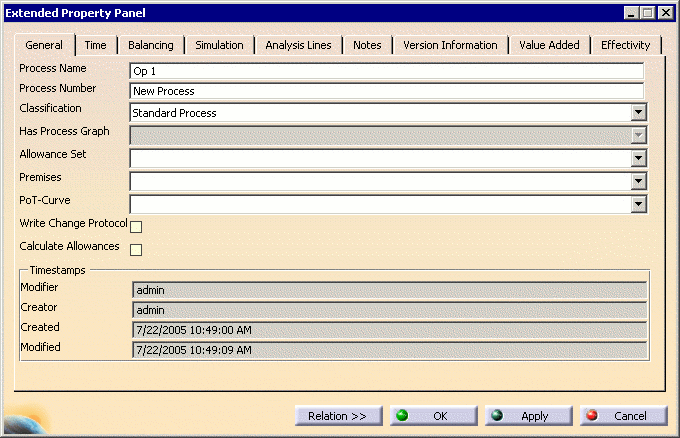
The Extended Properties dialog box is displayed:
Editing Attributes of Process Engineer Relations
The Relation button allows you to edit the user attribute on the relationship object between a process and a product or resource. This is useful when it must be specified that a product is re-installed on the assembly line, and is accomplished by specifying the proper inventory source value to the user attribute on the relation object between the product and the process that re-installs the product.
-
Click the Open Extended Property dialog box command
. -
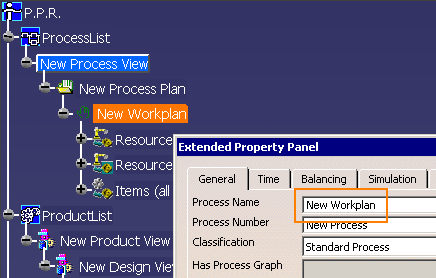
When prompted to select an object, click on the object of interest in the PPR tree. The Extended Property dialog box is displayed for the selected object:
-
Click the Relation command
 in the
Extended Property
dialog box. The Extended Property dialog box is withdrawn.
in the
Extended Property
dialog box. The Extended Property dialog box is withdrawn. -
Click on the related object of interest in the PPR tree. When a valid selection is made, the Extended Property dialog box is displayed again, and now includes the Relation-Effectivity tab:
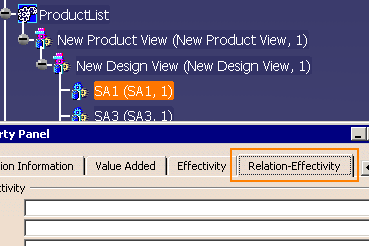
Note that if more than one relation object exists between the selected related objects, the following Select Relation dialog is displayed before the Extended Property dialog box is displayed:
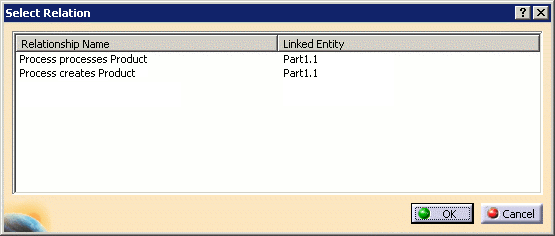
In the Relationship Name column, the name of each relation that exists between the selected objects is displayed. The Linked Entity column displays the details of the object related with that relation. Select the desired relation to edit and click OK. to display the Extended Property dialog box l. The Relation-Effectivity tab is updated with the attributes of the relation selected from this dialog box.
When OK, Cancel, or the Close Window command are selected in the Extended Property dialog box, the Extended Property dialog box becomes hidden again and the Select Relation dialog is displayed so that other relations can be accessed and edited. The Cancel and Close Window buttons exit the Extended Property dialog box command executed in Step 1. -
Edit the attributes shown in the Relation-Effectivity tab page as desired and click OK to close the Extended Property dialog box. (Note that changes made in the Extended Property dialog box are not saved to the Manufacturing Hub until a File > Save to Manufacturing Hub has been executed.)
Note that the visibility of the Relation-Effectivity tab is defined in the "relationship" class in Process Engineer, and must be enabled in the editor and browser. Additionally, user attributes must be created for all of the relations in Process Engineer to be displayed by the Extended Property dialog box tab.
Notes
- Attributes modified via the Extended Property dialog box are not saved to the Manufacturing Hub until the session is saved via File > Save to Manufacturing Hub.
- New activities and resources inserted into a Manufacturing Hub document in DPM must be saved into the database via the File > Save command before the Extended Property dialog box can be used on those objects.
- When an attribute that is mapped to a V5 attribute is changed in the Extended Property dialog box, the V5 attribute will be updated when the OK or Apply button executed.
- If a unit of measure is not specified when an attribute is modified via the Extended Property dialog box, the unit currently specified in the Tools > Options > General > Parameters and Measure > Units settings will be used for appropriate Conversions.
- The notes attribute editor in Process Engineer must be of type Multi line (not RTF).
- The following control types are not supported: Browser List, Select and Open File, File Viewer, Process Filter, Product Filter, Resource Filter, Effectivity Filter, Label Filter, Line Filter, EffectivityFilterEndDate, ExtendedEffectivityFilter, and Script Editor. Any attribute with the above control types is not displayed in the Extended Property dialog box (EPP).
- The Load user attributes for products and resources Manufacturing Hub option (accessible via Tools > Options > Digital Process for Manufacturing > Manufacturing Hub) does not affect the behavior of the Extended Property dialog box command. User attributes for loaded products and resources are always displayed in the Extended Property dialog box.
- To view the properties of the Process Implements Requirement relation, the unexposed part must be selected from the PPR tree.
