
This procedure describes how to retrieve CAD data from the Engineering Hub (ENOVIA LCA and ENOVIA VPM).

Select the Manufacturing Hub tab under Tools > Options > Digital Process for Manufacturing and select Load ENOVIA V5 VPM Geometry from ENOVIA Database. This option enables you to load the actual CAD data instead of loading the geometry referenced in Process Engineer.
Select the Cache Management tab under Tools > Options > Infrastructure > Product Structure and select Work with the cache system. This option enables you to use the cached CGRs for display, and to facilitate switching between visualization and design mode in the product structure environment.
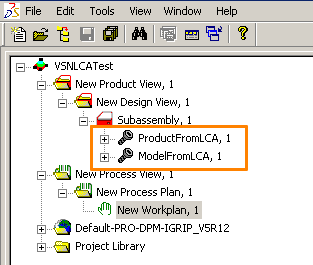
The scenario in this task shows the following DPE project, which features both a product and a model to be loaded into DPM:

-
If the product structure was transferred from ENOVIA VPM, click Connect
 .
.
Note: The ENOVIA V5 toolbar is only available with installations that incorporate VPM Navigator.
For additional information, please refer to the ENOVIA-CATIA Interoperability guide provided with the ENOVIA V5 documentation. -
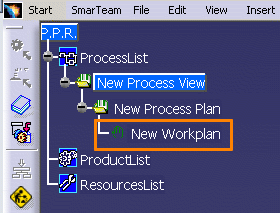
Open the project in DPM and select the New Workplan, 1 process.
-
Select Insert> Manufacturing Hub Object> Product from the project.
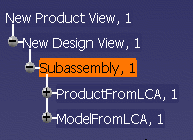
The Manufacturing Hub - Select Product dialog lists the subassembly with two CAD files of interest.
-
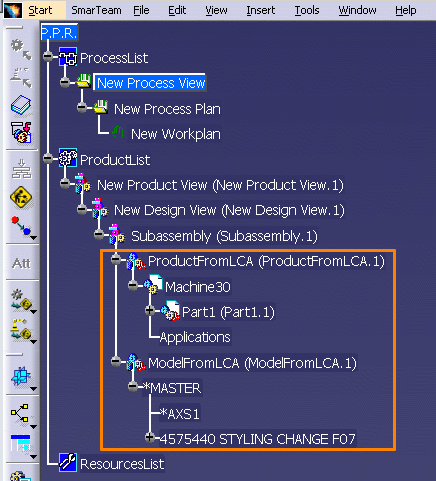
Select the subassembly and click OK to import the CAD data into DPM.
Supporting VPM V4 CAD data as Attachment
This behavior allows the V5 DPM client to load VPM V4 document geometry which has been transferred as attachments in the Manufacturing Hub. The relevant information required for DPM client to load the VPM V4 documents will be populated to the necessary attributes on the VPM attachment object in the Hub. It also supports the modified VPM V4 Bridge behavior.
To support VPM V4 data as an attachment:
-
Create a product structure in VPM V4, use different geometry types (CATPart, CATIA models, CGR) to assign.
-
Create a project in E5 and transfer the product structure from VPM V4 to E5 project using VPM loader. The VPM V4 documents are transferred as attachments on parts.
-
Select Tools> Options> Digital Process for Manufacturing> Manufacturing Hub> Load ENOVIA V5 Geometry from database.
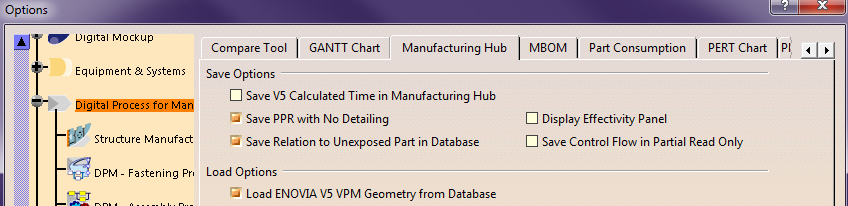
-
Select connect to VPM V4 server from V5 and load the operation from Open Manufacturing Hub project.

Notes:
-
A VPM part with multiple documents transferred to the Manufacturing Hub would have as many attachments representing each geometry document. However only one of the attachments would be chosen to be used as the primary geometry for the part and marked as such by the VPM bridge. Hence loading this VPM part in V5 would load only the primary geometry. The other geometry will be added as shape representations on the product in V5 where possible, but will not be activated and visible be default in V5.
-
When any existing detailing is loaded in V5 and synchronized with the updated product structure in the Manufacturing Hub, then the existing child products will be deleted from the V5 detailing and the VPM V4 documents will now be associated with parent product. Hence any existing V5 detailing that was consuming the child components (e.g in a simulation or linking to the child component) will be impacted and the simulation may be broken.
-
When existing VPM product data is re-bridged to the Manufacturing Hub in the same E5 project using the new methodology, then the existing child components that were representing the VPM documents previously will be marked with ‘delete’ for their ‘updatestate’ attribute.
-
When the updated product structure is loaded in V5 (through regular load or context load), then these children components will not be loaded in V5 despite existing in the Manufacturing Hub.
This limitation will apply only to product components transferred from VPM V4 and with their ‘updatestate’ attribute set to ‘delete’. Other products in the Manufacturing Hub (not from VPM V4) and with same attribute value will continue to be loaded in V5. -
The Manufacturing Hub server filters out any products during volumetric filtering which have their ‘updatestate’ attribute set to ‘delete’, even if the products meet the volume filter criterion.
-
A V5 detailing is saved with volumetric/server computed manufacturing context loaded with parts from coming VPM V4, transferred with the old VPM bridge behavior to the Manufacturing Hub. When same VPM product data is re-bridged to the Manufacturing Hub in the same E5 project using the new methodology and the detailing loaded in V5, the context present in the detailing will not be synced automatically with the updated product structure in the Hub.
This limitation is not applicable to any V5 detailing that is saved with V5 client computed manufacturing context.
