
The Manufacturing Hub client configuration has specific requirements, including:
- The DELMIA Process Engineer Client must be installed on the same machine from which V5 is run
- The DELMIA Process Engineer Client must be of the same release level as the V5 client (i.e., R19, R20, etc.)
- The DELMIA Process Engineer Client must be of the same bitness as the V5 client from R23 onwards.
- Ensuring the installation of the correct version of the Java Runtime Environment (JRE)
- Creating and setting the JAVA_HOME environment variable
- Increasing the default JVM heap size
- Setting the system path so that the E5 utility can be accessed, and also that the geometry is displayed in the DPM viewer
Additional recommended option settings are also noted below.
Any remaining administrative setup is not discussed in this user guide. Prerequisites which are required at this level of configuration are discussed in detail in the DELMIA Process Engineer Administrator documentation.

Java requirements
Install the correct version of the JRE
Please refer to the Quick Prerequisite Checklist in the DELMIA Installation & Deployment Guide for the current required version of the Java Runtime Environment (JRE).
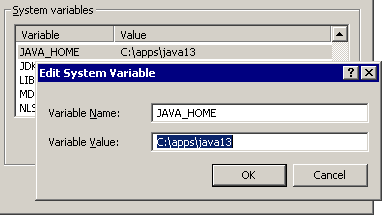
Set the JAVA_HOME environment variable
In addition, the environment variable JAVA_HOME must be defined that indicates the JRE installation directory (for example, C:\apps\jre1.5.0_05) on the client machine:
Recommended JVM heap settings
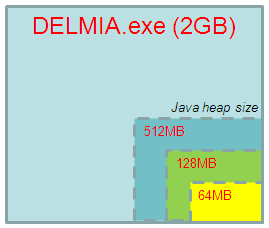
By default, the heap size for the Java Virtual Machine (JVM) is set at 64MB. To accommodate larger projects and improve performance, it is recommended that the heap size is set to a minimum of 128MB or higher.
To accomplish this, set the environment variable CATJWS_JAVA_OPTION to "-Xmx128M":
CATJWS_JAVA_OPTION=-Xmx128M
If the maximum heap size is reached when loading a project from the Manufacturing Hub, the load will fail and the following error message is displayed:
		CATPPRReplica::GetReplicaFromBinary(const CATBinary&, CATBoolean,
		CATPPRReplica&) java.lang.OutOfMemoryError <<no stack trace available>>
If this occurs, please close the V5 session and increase the JVM maximum heap size as explained above, then restart DPM.
 |
The maximum virtual memory allocated to
any given process on Windows operating systems is 2GB. Because of
this, it is not
recommended to set the heap size value higher than 512MB, as Java
runs inside the DELMIA process and consumes a portion of the total
memory allocated for the DELMIA application. Setting this value too high can cause the
process to fail when the additional required DELMIA-specific code
and data (product data, product visualization, etc.) are loaded at
runtime.
|
Setting the system path
Specify the location of the E5 installation
To support the loading of Work System Components, the E5 utility must included be in the system path. This includes adding the following directory paths to the system path:
<E5 Installation>\Bin;<E5 Installation>\PPRClient\Program\Bin;<E5 Installation>\PPRServer\Program\Bin;
where "<E5 Installation>" is the root directory of the E5 installation, and each path is delimited by a semicolon.
The above also sets the path to the executable GraphicExport.exe, which allows for geometry to be seen in the V5 viewer. This executable is is part of the E5 installation, and is located in <E5 Installation>\PPRClient\Program\Bin.
To add these entries to the system path:
-
From the Windows taskbar, select Start Settings Control dialog box to open the Control dialog box window.
-
In the Control dialog box window, double-click the System icon
 to display the
System Properties dialog box.
to display the
System Properties dialog box. -
Click the Environment tab to view the current system variables.
-
In the User Variables window, highlight the PATH variable. The current path settings appear in the Value text field.
-
Edit the Value text field to include the paths indicated above. Separate the paths being added from the existing paths in the list by a semicolon.
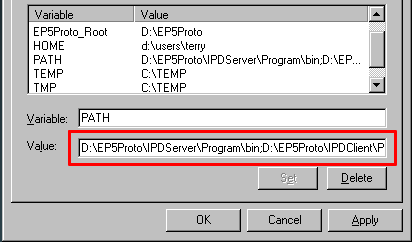
This example shows "D:\EP5Proto" as the <E5 Installation> directory.
-
Click the Set button to update the system PATH variable with the edited Value text field.
-
Click OK to close the System Properties dialog box.
Recommended options
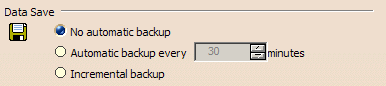
Disable automatic backups
It is recommended that the Tools > Options > General > Data Save
option is set to No automatic backup for Manufacturing
Hub projects:
 |
DNBIPDMutipleClient--Registration.reg
Requirement and Usage
Registry file called DNBIPDMultipleClientRegistration.reg is delivered in <Installation Directory>/intel_a/code/command> folder. This file needs to be run once after the fresh installation of DELMIA V5
This is required to support remote DPE server-DELMIA V5 client
connection.
This file registers the security settings for three applications:-
- DELMIA.exe
- CNEXT.exe
- DirectLaunch.exe