

Mirror an Element without an Existing Reference Frame
-
Place your cursor over a geometric element that defines the plane (e.g., a construction plane).

As you move the cursor, a small white rectangle is displayed to show the selectable planes, as shown below. 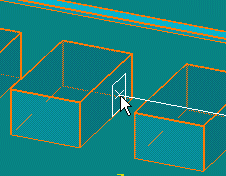
If you do not see the white rectangle, zoom out from the drawing. The white rectangle cannot be displayed if the element under your cursor is displayed too small. -
Click to select the plane.
-
Click to select the item that you want moved. The selected elements are mirrored to the other side of the plane.
Mirror an Element Using an Existing Reference Frame
-
Click Mirror
 .
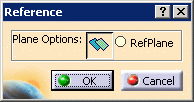
.The Reference dialog box displays if you already have a reference plane defined (using Offset Plane  ).
).
-
Click the Offset Plane
button to define a different offset plane; otherwise, click Ref
Plane. Then click OK. -
(If necessary) Select a new offset plane, and click to confirm.
-
Select an item to move, and click to confirm. The selected elements are mirrored to the other side of the plane.
