

 displays information for runs and connectors as you
pass the pointer over them. This information can include line IDs, nominal size of runs and parts,
and XYZ coordinates of connectors. The type of information shown depends on the object and the product you are using.
displays information for runs and connectors as you
pass the pointer over them. This information can include line IDs, nominal size of runs and parts,
and XYZ coordinates of connectors. The type of information shown depends on the object and the product you are using.
Additionally, you can select an object and open a dialog box that provides more detailed information for the selected object.

-
Move the pointer over objects in the document. Information and attributes and their values display for each object.
Different information displays, depending on the type of object. In the illustration below, pointing to a piping part connector displays this information. 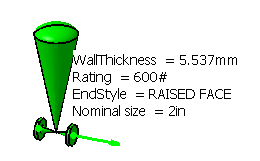
When you select an object, the Selected Object dialog box displays, and lists additional information about the part. 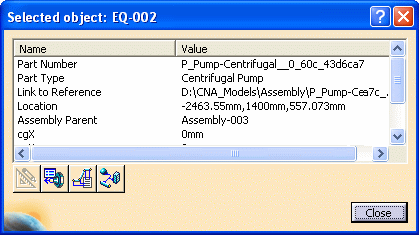
-
Click the Select Part to Display Connector List button
 to display the Selected Part
dialog box.
to display the Selected Part
dialog box. The Selected Part dialog box lists connector information for the selected object, and lists attributes and their values. 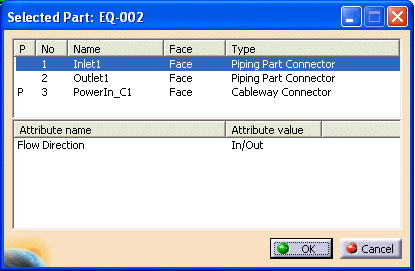
The P in the P column indicates that the connector is published. Click OK to return to the Selected Object dialog box. -
Click the Select Part to Display Node List button
 in the Selected Object dialog box to display the Node List
dialog box.
in the Selected Object dialog box to display the Node List
dialog box. The Location column lists the node position of the connectors, and node positions of nodes on runs and bendables. 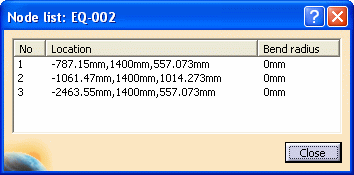
Click Close to return to the Selected Object dialog box. -
Select another object in your document while displaying the Selected Object dialog box.
Information for that object now displays in the dialog box. 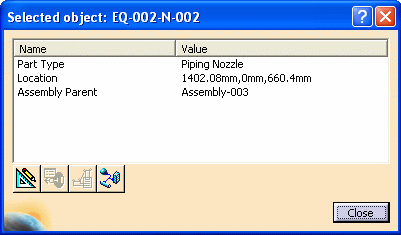
If the selected object is in visualization mode, you can click the Convert to Design Mode button  and view information for the object available only in Design Mode.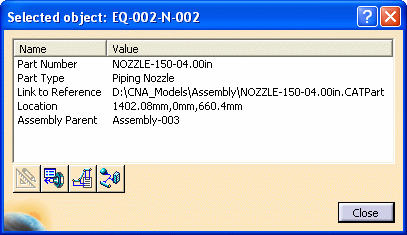
Click Close to close the dialog box. -
If the object you selected in your document is an equipment assembly, click the Show Parent Assembly Data button
 and display information for the parent assembly in the Selected Object
dialog box.
and display information for the parent assembly in the Selected Object
dialog box.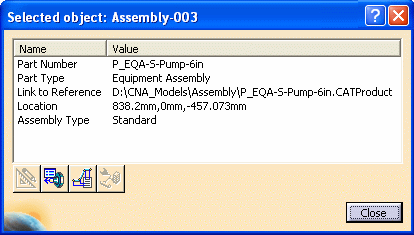
Click Close to close the dialog box.
