Saving a Process File with Save Management

This procedure describes how to save a process file using the save management command.  
This procedure assumes that at least one activity has been added to the process list and that only the .CATProcess file needs to be saved (that is, the .CATProduct files to which the .CATProcess refers are not also supposed to be saved)
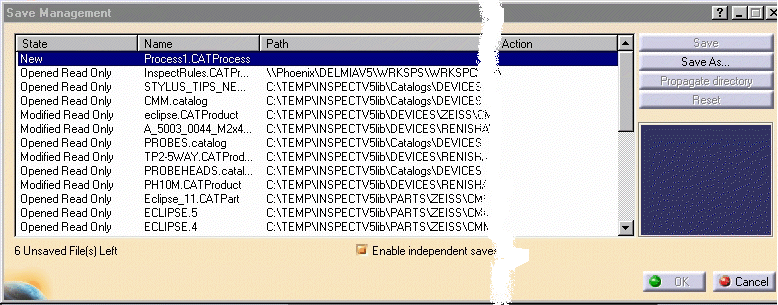
Using simply the save option will save not just the .CATProcess file, but also any changed data (such as changes in parent/child product structures) within the .CATProduct or .CATPart files loaded into the PPR tree.  Using save management enables users to select only the file or files that they want saved.  If you look at the State column in the image below, you can see that the system records several files as "modified," even though they are read only.  You can elect to save these files or not, using save management.

To save data (such as a loaded, snapped, attached, defined, and activated CMM probe), you need to have activities within the process list.

  1. Select File > Save management.

    The Save Management dialog box appears (the image below has been modified to make it less wide).
  2. Verify that the Enable independent saves check box is selected (if not, select it).

  3. Select Process1.CATProcess and click the Save As button. 

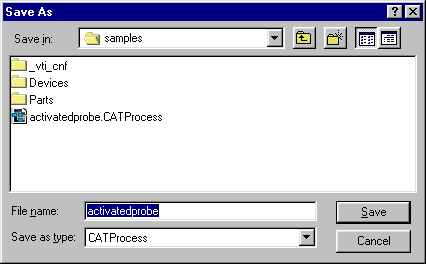
    The Save As dialog box appears: 
  4. Name the file activatedprobe and click the Save button.

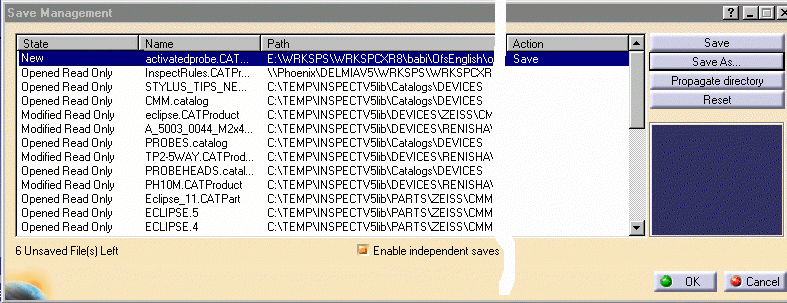
    The Action column lists Save by the file activatedprobe.CATProcess.  The file, however, is not saved until you click OK
  5. Click OK.

    The file is now saved.
This procedure can be repeated as often as desired.