Defining an Operation Activity and Machine Coordinate System (MCS)  

This procedure describes how to create an operation activity and define a Machine Coordinate System (MCS).   Each operation activity defines the DME performing the activities that are its children.
This procedure assumes that the following parts and assemblies have been loaded from the catalog browser or from samples, snapped together, and (in the case of the CMM and probe head) attached:
Resource or Product Name
CMM PRISMO
Probe head PH10M
Fixture FIXTURE.CATProduct
Tool Assembly SAMPLE TOOL.CATProduct
Part to inspect SAMPLE PART.Product
 
  1. Select the parent process. 

  2. From the Inspection Station sub-toolbar of the Inspection Activities toolbar, click Create Single-Arm CMM Station.

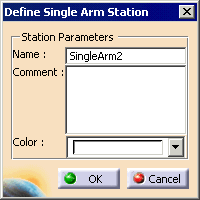
    The Define Single Arm Operation dialog box appears.
  3. In the Name field, accept the default name or enter a new one.

  4. In the Color field, accept the default color or select a new one.

    The color selected becomes the color on the PPR tree that marks all the child activities of the operation.
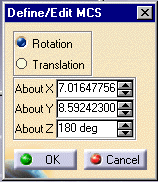
  5. From the menu bar, select Insert > Alignments > Define MCS or from the Inspection Activities toolbar, click Define MCS

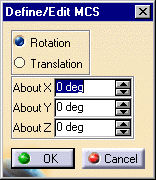
    The Define/Edit MCS dialog box appears.
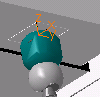
  6. Move the cursor over the tag point on the mount plate of the CMM (it may initially appear obscured by the probe head).

     
  7. Click on the geometry.  The tag point appears highlighted in green.

     The values in the dialog box reflect the coordinates of the tag point.
     
    You can alter these values by using the spinners or by selecting another tag point on the geometry.
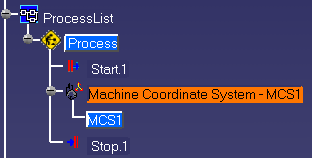
  8. Click OK.

     The activity is added to the process node of the PPR tree.
     
You are ready to define and activate the probe.