

-
From the menu, select Start>Inspection Offline to verify that all Inspection DLLs are available, then exit from Inspect.
-
Go to Tools>Options>Infrastructure>Part Infrastructure>Display, and select the Parameters and Relations options.

For more information, see Part Infrastructure for Knowledgeware Options in the V5 Infrastructure User's Guide. -
From the menu, select Start > Knowledgeware > Knowledgeware Expert.
-
Click Expert Rule
 .
.The Rule Editor dialog box appears. 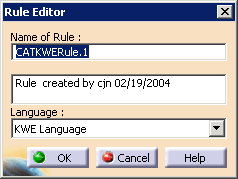
-
Modify the name of the rule and select the OK button.
The Rule Editor dialog box for the rule you created appears. 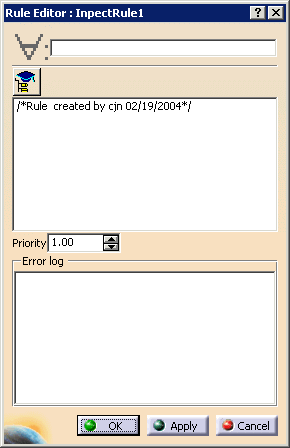
-
Select the Push button.

The Browser window appears. 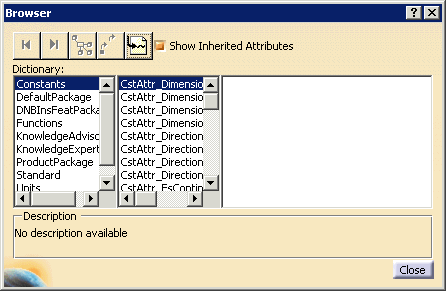
-
In the Dictionary column, select DNBInsFeatPackage to see parameters, such as DNBInsCircle, which are exposed by Inspect.
(If the parameters are not immediately available, click on the DNBInsCircle.) 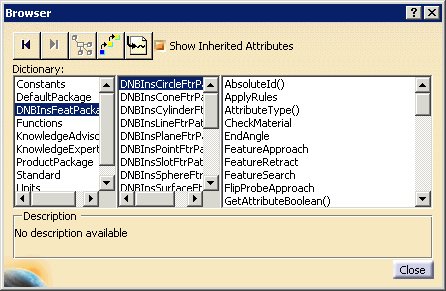
-
Use the Rule Editor dialog box to enter the rules (see below).
You can double click on the parameters within the Browser dialog box, and the text will appear where the cursor was last in the Inspect Rules dialog box. -
Select the OK button on the Rule Editor dialog box when done.
-
Create as many rules as required.
-
Select the Close button on the Browser dialog box.
-
Save the product file as InspectRules.CATProduct.
