


-
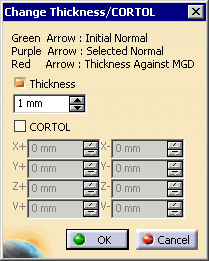
Click Change Thickness/CORTOL
 .
.The arrows for normal appear in green on the geometry; the Tools Palette and the Change Thickness/CORTOL dialog box appear. 

All the arrows represent features visible on the geometry from the current view; more features may be selected than are visible. -
Use one or more of the tools in the Tool Palette to select the features.
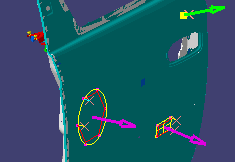
The arrows showing normal turn purple. -
Select the Finish button.

-
Select the Thickness check box and select a thickness.
-
(Optional) Select the CORTOL check box, and select the values.
-
Click OK.
A Thickness Modification confirmation appears. 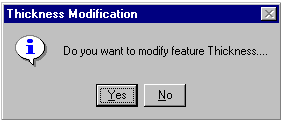
-
Click Yes.
