

-
Select MGD
 .
.The Material Growth Direction dialog box appears. 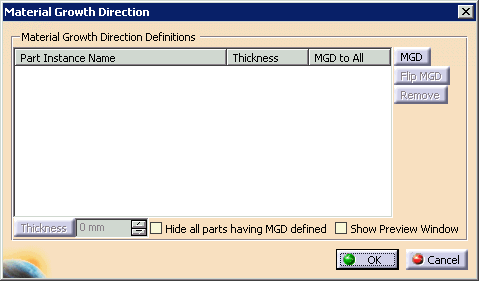
-
Press the MGD button.
-
Select a point on the part.
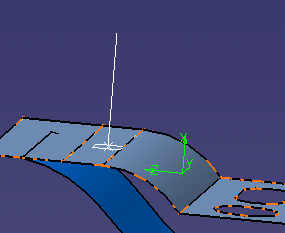

- To see the part in its own window, select the Show Preview Window check box. If the part or the point on the part is not what you want, click the preview window's Reject button; otherwise, click Accept.
- To hide all parts that already have MGD defined, select the Hide all parts having MGD defined check box.
-
Click on the part.
A red arrow appears showing the direction of material growth. -
Select the line with the part name on the dialog box.
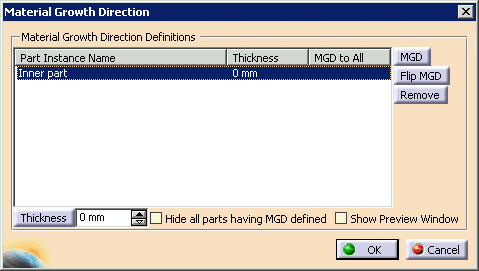
All of the buttons become available. -
In the Thickness box, type the value or use the arrows to change the value.
-
Click the Flip MGD button, if appropriate.
The red arrow showing MGD will flip directions. -
Click OK.
