Creating an Arm Activity

This procedure describes how to create an arm activity.

You must create both an Arm1 and Arm2 activity before you can create any simultaneous, common, or synchronous activities.

You must have tool assemblies, two-armed CMM, and probe heads in the resources of your PPR tree. Select the sample file ENVIRONMENT.CATPRocess.
  1. Click Arm1 Activity.  

  2. Select the CMM you want associated with Arm1 activities (BS_CMM_ARM1), the probe head (PH10M.1), and the tool assembly for the activities (Tool_Sample1).

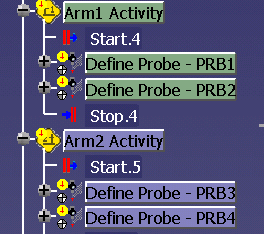
    On the PPR tree, the Arm1 activity appears in the color you selected for Arm 1 when you created an operation activity. The resources associated with the activity are listed under the Arm1 Activity node.  All activities that you subsequently add to the PPR tree as children of the Arm1 Activity appear in that color.
  3. Click Arm 2 activity .

  4. Select the CMM you want associated with Arm1 activities (BS_CMM_ARM2), the probe head (PH10M.2), and the tool assembly for the activities (Tool_Sample2).

    On the PPR tree, the Arm2 activity appears in the color you selected for Arm 2 when you created an operation activity.  The resources associated with the activity are listed under the Arm2 Activity node.  All activities that you subsequently add to the PPR tree as children of the Arm2 Activity appear in that color.
Subsequent activities, such as measure feature activities can now be added as children of either the Arm1 or Arm2 activities.  In addition, if you create a simultaneous or synchronous activity, Arm1 and Arm2 activities are created as children of those activities.
Most activities originally created for a single-arm CMM can be migrated to one arm activity or the other of a two-arm CMM. The activities that cannot be migrated are:
  • Define Probe
  • Activate Probe
  • Define Tool Rack

All the resources assigned to the single-arm process are assigned to the activity.