Constructing a Cylinder Feature  

This procedure describes how to construct a cylinder feature.  A construct cylinder feature will appear as an activity of the process on the PPR tree.
To construct a cylinder feature, you must have a product loaded.
  1. Select the parent process or preceding activity for the construct cylinder activity. 

  2. On the toolbar, click Construct Cylinder.

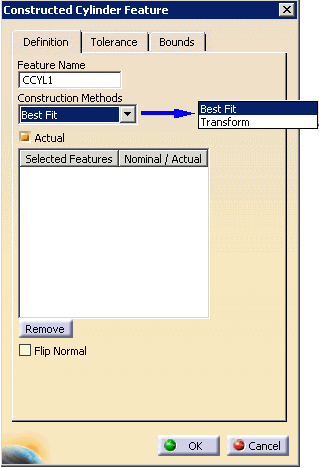
    The Constructed Cylinder Feature dialog box appears.
    The dialog boxes for constructed features vary according to the construction method selected.  An explanation of the requirements for each method appears in the table below.
     
    Method Explanation
    Best Fit Select at least 6 points.
    Transform Signifies that the constructed feature is a copy of the previously measured or constructed feature except that the previously measured or constructed feature is transformed to the specified coordinate system or to the current coordinate system when no coordinate system has been specified.

    In an inspect context, the feature is just duplicated. To put this feature in a different alignment, the user will have to use the move after command and position the feature after an Activate Alignment activity

    Required for construction:

    • Feature
    See also Using Bounds.
  3. Click OK.

    The activity is added to the PPR tree and the constructed cylinder appears highlighted in pink on the part geometry. 
To provide a non-default name for the feature you have constructed, by entering the name in the Feature Name box.