| Method |
Explanation |
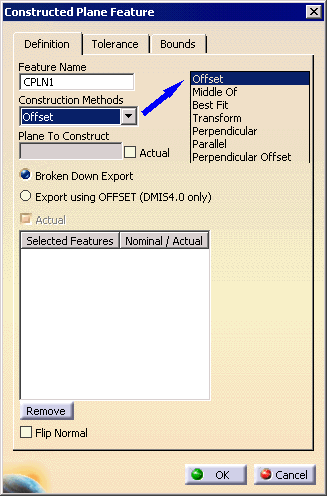
| Offset |
The constructed feature can be a
line or a plane. Required for construction:
- 1 reference feature
- 3 point reducible features
|
| Middle Of |
Required for construction:
- Plane reducible feature
- Plane reducible feature
|
| Best Fit |
Select at least 3 points. |
| Transform |
Signifies that the constructed feature is a
copy of the previously measured or constructed feature except
that the previously measured or constructed feature is
transformed to the specified coordinate system or to the
current coordinate system when no coordinate system has been
specified.
In an inspect context, the feature is just duplicated. To
put this feature in a different alignment, the user will have
to use the move after command and position the feature after
an Activate Alignment activity
Required for construction:
|
| Perpendicular |
Required for construction:
- Point reducible feature
- Line reducible feature
|
| Parallel |
Required for construction:
- Point reducible feature
- Plane reducible feature
|
|
Perpendicular Offset |
Required for
construction:
- Plane to construct
- The plane to which the constructed plane is
perpendicular
- Points used to construct the perpendicular offset
plane. The Actual option is deactivated and set because only
Actual (measured/constructed) points are allowed. A minimum
of 3 points is required.
|


 .
.