| Method |
Explanation |
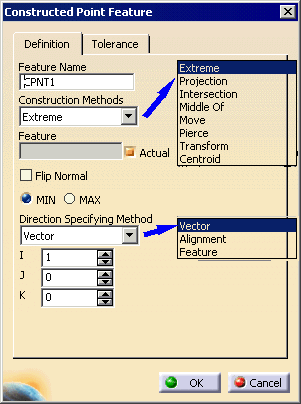
| Extreme |
Signifies that the feature to be
constructed is the measurement point for the previously
defined feature that is the most extreme in a direction.
Required for construction:
- MIN or MAX (highest or lowest point in the direction)
- Reference feature
- Direction (one of the following choices)
- X, Y or Z of the current alignment
- Feature (actual or nominal check box)
- Three vector values
Note: Inspection uses nominal data only.
Therefore, in some cases, several measurement points are
candidates to be the extreme point (for instance, a plane or
cylinder may have the same normal as the reference direction).
In this case, the constructed point generated and displayed
will be located at the center of all candidate points
(measurement points of the plane, first section of the
cylinder measurement). |
| Projection |
Signifies that the feature to be constructed
is to be the projection of a previously defined and measured
feature onto the specified feature. Required for
construction:
- Point reducible feature
- Line/Plane reducible feature
|
| Intersection |
Required for construction:
- Point reducible feature
- Line/Plane reducible feature
|
| Middle Of |
Required for construction:
- Point reducible feature
- Line/Plane reducible feature
|
| Move |
Required for construction
EITHER:
- Point reducible feature
- Coordinates:
OR
- 2 Point reducible features
- Distance
|
| Pierce |
Signifies that the feature to be constructed
is a point at the intersection of the line reducible feature
with the surface. In the case of multiple solutions for the
constructed pierced point feature, the one that is nearest the
nominal definition will be utilized.
When Pierce is specified, the resulting I J
K value for the pierce point is the direction of the
surface normal at that point. Required for construction:
- Line reducible feature
- Surface
|
| Transform |
Signifies that the constructed
feature is a copy of the previously measured or constructed
feature except that the previously measured or constructed
feature is transformed to the specified coordinate system or
to the current coordinate system when no coordinate system has
been specified.
In an inspect context, the feature is just duplicated. To
put this feature in a different alignment, the user will have
to use the move after command and position the feature after
an Activate Alignment activity
Required for construction:
|
| Centroid |
Required for construction:
Select the feature (plane, cylinder, or cone) to
extract the centroid from. This feature must be actual. A
constructed plane is not supported. |


 .
.