 |
This procedure describes how to measure a
point feature. A point feature measure will appear as an activity
of the process on the PPR tree. |
 |
To measure a point feature, you must have a
product loaded and a point defined. |
 |
-
Select the parent process or preceding activity for
the measure point activity.
-
On the Inspection Activities toolbar, click
Measure Point
 . .
-
Select the defined point you wish to measure.
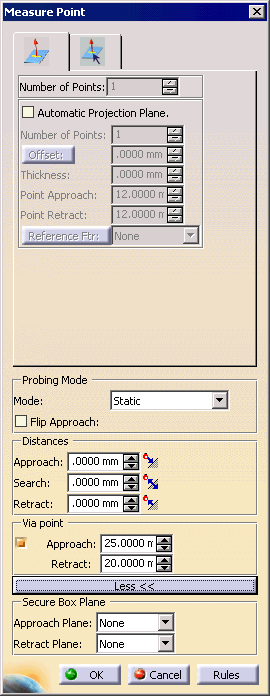
| The Measure Point dialog box appears. |
 |
-
Alter the information in the dialog box as desired.
-
Once you have defined the measurement desired, select
the OK button.
| The activity is added to the PPR tree. |
| Note that creating a measure point activity also creates a tag
list resource (which consists of point path groups) and point path
applications. |
| The measured point appears highlighted on the part geometry. |
|
 |
If you create this activity before you
insert a CMM into the resource list of the PPR tree, you will be asked
to confirm that you wish to create the activity without a CMM assigned
to it. You can assign the CMM
to all the activities within the process once you are ready to insert
the CMM. |
