

-
Click Define Generic Feature
 .
. -
Select the insertion point in the process.
The Generic Features dialog box appears: 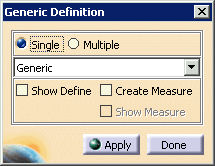
-
Select a pattern tolerance associated with one of the features to be inspected.

Select the pattern tolerance and not the feature. Selecting the feature will result in only the selected feature being selected. -
The pattern definitions of the features associated with the tolerance pattern are added to the process.
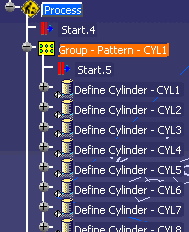

- Users can select Create Measure in the Generic Definition dialog box and the feature measure activities will also be created.
- If you select an individual feature from within the pattern, and
modify the measurement path, the system asks whether you want all of the
features in the pattern to have their measurement path or only the
feature selected.
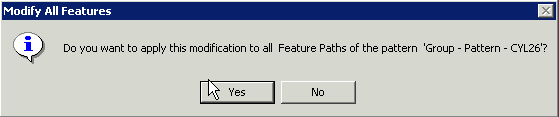
- Measure feature activities within a pattern group can be moved outside of the group by selecting the measure with the right mouse button and selecting the Move After option from the context menu.
- Define feature activities can be moved within the pattern, but not outside of the pattern.
- Some features may belong to more than one pattern group. When
you create a pattern group that contains members of previously defined
pattern group, the following query appears:
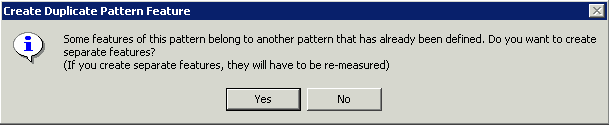
If you do not create separate features, the same feature will be defined only once, but referenced twice.
