Defining a Circle Feature  

This procedure describes how to define a circle feature.  A circle feature will appear as an activity of the process on the PPR tree.
To define a circle feature, you must have a product loaded.
  1. Select the parent process or preceding activity for the define circle activity. 

  2. On the Inspection Activities toolbar, click Define Circle.

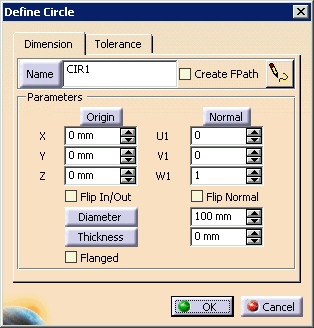
    The Define Circle dialog box appears.
    When you first create a feature, you need to select a thickness for it.  Inspect uses that thickness value as the default value thereafter.
  3. On the 3D geometry, select the circle. 

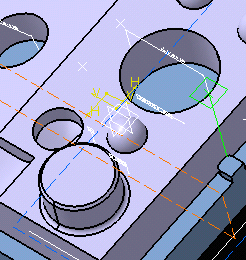
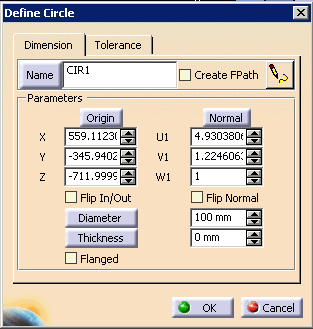
    Once selected, the circle is highlighted and a green arrow, signifying normal, protrudes from it.  The direction of normal can be flipped by checking the box on the dialog box.
    The dialog box also contains the data for the circle selected. 
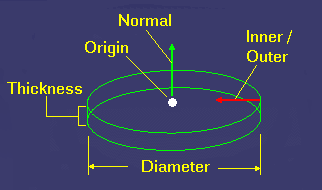
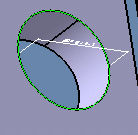
    For an image defining the dimensions, click on the button. The image appears.
     
      You can alter the circle definition by clicking on the Diameter button, and then selecting three points on the geometry with which to redefine the circle.
      You may enter a name for the circle in the Name frame.
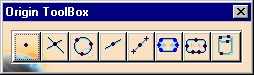
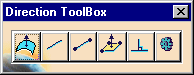
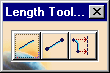
      You can also alter the direction of Origin, Normal, and Thickness by selecting the buttons with those parameter names.
      If you select any of these buttons, the dialog box disappears, and the appropriate toolbox appears in its place.  Select the button on the toolbar that changes the direction as desired.
         
    See About the Toolboxes for information on using the toolboxes.
  4. Select the OK button.

    The activity is added to the PPR tree.
    The defined circle appears highlighted on the part geometry
If you check the FPath box, you can measure the feature at the same time you create it.

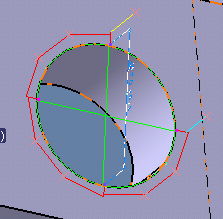
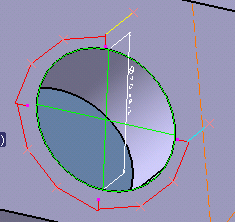
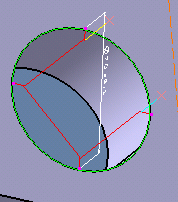
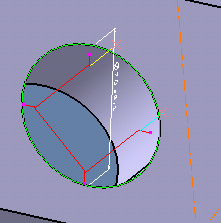
Selecting Flip In/Out, setting a thickness, or setting the Flanged option on affects the measure path.  Here are examples:

Measure path with flip out/on checked and a thickness of 3 mm:

Measure path with flip out/on checked, a thickness of 3 mm and flanged checked on:

Measure path with flip not checked, flanged not checked, and a thickness of 3 mm:

Measure path with flip not checked, flange check on, and a thickness of 3 mm: