


-
Click Snap 2 Parts
 .
. -
Select the object you want to be snapped (in the case of the example, it is a tag; in the general, it is the part that will move when snapped).
-
Select the object to which you wish to snap the object selected above (in the case of the example, it is a door; in general, it is the part that will remain stationary when the part selected above moves).
The Define Reference Plane (To) dialog box appears, asking you to define the reference plane. 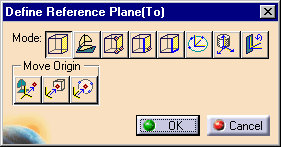

For an explanation of the options available using Define Plane, see 3D Simulation for Manufacturing User's Guide : User Tasks: Controlling the Process Environment : Using Offset Planes and Advanced Offset Planes. In addition, a small white rectangle is displayed to show the selectable planes. A line, perpendicular to the rectangle, shows the direction in which the snapping is performed. 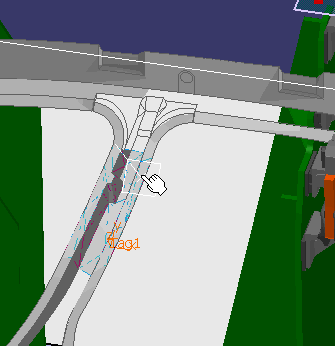
-
Move the white rectangle until you have selected the appropriate plane of reference.
A green manipulator appears that can be used to invert the axis. 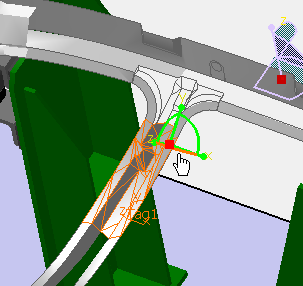
-
In the Define Reference Plane (To) dialog box, select the mode of reference (if it is not already selected); click OK.
-
On the Snap Options dialog box, select desired constraint options (if any), and click OK.
The object is snapped. (In the example below, the mode selected was to a plane; the constraint option selected was face.) 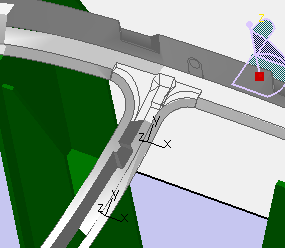
 considers devices as a whole. If a device part is selected, the
entire device is considered as selected.
considers devices as a whole. If a device part is selected, the
entire device is considered as selected.