 |
-
Click Cycle Time Reporting
 . .
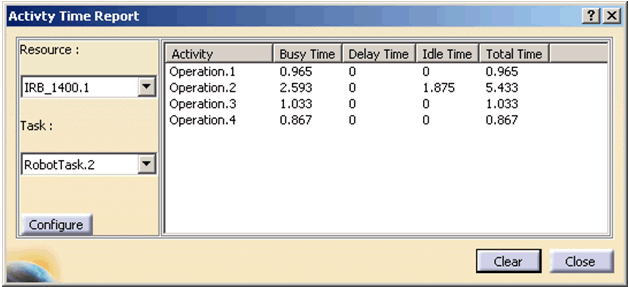
| The Activity Time Report dialog box
appears.
|
|
 |
If you have run a report previously during your session, it
appears with data, as shown above. Otherwise, it appears
blank. |
-
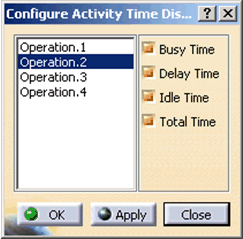
Click the Configure button.
| The Configure Activity Time Display dialog box
appears. |
 |
-
Select the desired options.
|
|
By default, all rows and columns of available data are
displayed. The configuration is stored for the cycle time
output of that task and persists as long as the cycle time
data is there. |
| |
Cycle time data persists within the lifetime of a
simulation command even when the Activity Time Report
dialog box is closed. If the operation is run again, then
the cycle time for that operation is overwritten. If a
simulation command is reset or a new simulation command is
launched, all data in from the previous simulation run is
deleted as soon as the first operation in the new simulation
is run. |
-
Run the simulation using one of the robotic
simulation commands or the Teach dialog box.
| The cycle time data appears. |
|
All the resources and tasks which the user has simulated will be
available for display. Only one task is displayed at a time and
you can select which operations should displayed for that task.
This information can be saved for the task so that when you run
the simulation again, only the selected operations are
displayed. The time between the current location and the
previous location can be seen from the last line in the dialog |
|
|
The user can delete the data the currently displayed task by
clicking the Clear button. As a consequence, you can
run different combinations of an operation without rerunning the
entire simulation. |
-
When you are finished with your report, click the
Close button.
|

