This procedure has two parts
- Mirroring a robot task
- Mirroring a tag group


Mirroring a Robot Task
-
Click Mirror Tag
 .
. -
Select a robot task.
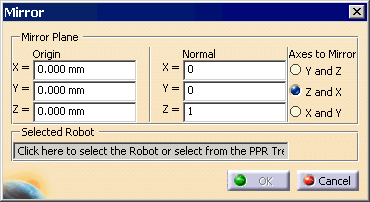
The Mirror dialog box appears:
-
Select the Robot, then select either a tag or a plane that will serve as the mirror for the tag group or the robot task.
To select a plane, position the white plane where you want it and click:
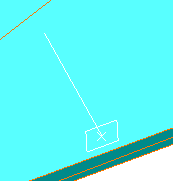
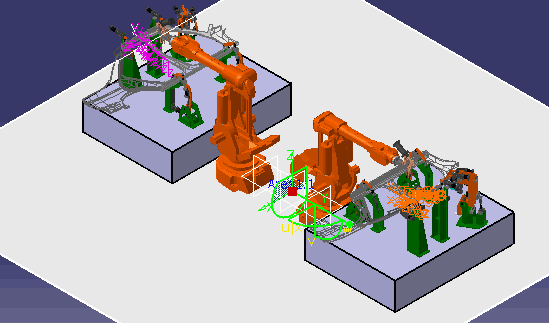
The compass appears where you selected the plane, and the mirror tags appear highlighted in the geometry.
Also, the coordinates for the plane appear in the Mirror dialog box:
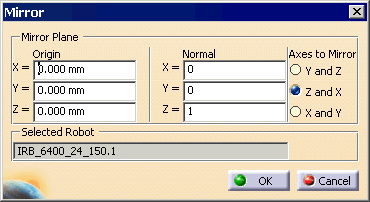
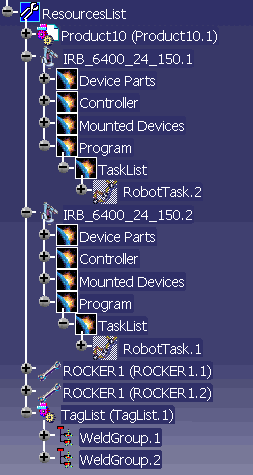
And the tree appears:
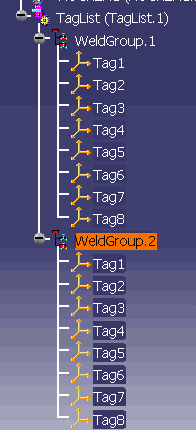
-
Manipulate the compass to orient the tags.
-
Select the robot in which you want to create the mirrored task.
The new task is created for the selected robot as well as a new tag group.
Mirroring a Tag Group
-
Click Mirror Tag
. -
Select a tag group.
The Mirror dialog box appears:
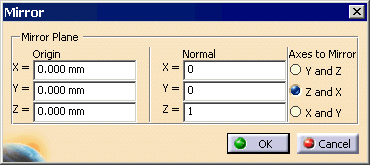
A compass and the mirror tag group appear on the geometry.
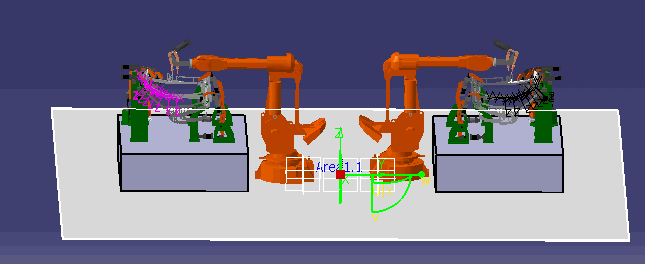
-
Manipulate the compass to where you want the tags located.
The coordinates change dynamically in the dialog box as you manipulate the compass.
-
When the tags are correctly position, click OK.
The new mirror tag group is added to the PPR tree.