
To alter the manufacturing location, a fastener must be assigned to a process. The manufacturing location alteration can be done only under specified limits which can be set in Tools > Options > DPM Fastening Process Planner > Fastener Attributes.

-
Click Edit Fastener Location
 .
. -
Select one or more assigned fasteners.
The Edit Manufacturing Location for Fasteners dialog box appears. 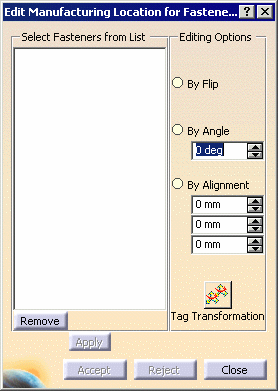
-
Select one of the four editing options:
By Flip This option flips selected fasteners.
The Select Fasteners from List contains a list of all fasteners selected from the 3D viewer or PPR. These fasteners have been selected because you intend to apply one or more changes to these selected fasteners. Suppose 6 fasteners have been selected for editing and the user wants to apply flip on 2 of them. You will select them in the list and choose flip. Only these two will be flipped. Now you can select a different set and apply another change on those selected fasteners. Thus any change is not applied to all the fasteners in the list, it is applied only to those in the list which are currently selected. The currently selected fasteners are also highlighted in the 3D viewer and PPR.By Angle This option alters the angle of the fasteners. By Alignment When you select this option, you can either input values by altering the spinners or you can choose to use the 3D compass. This option reorients the x-axis of the selected welds such that all of them point to the position of the compass.
Before alignment:
Please note the orientations of x-axis of the highlighted welds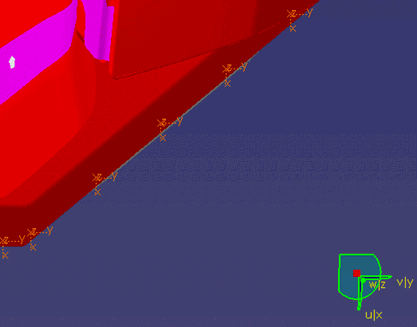
After alignment:
Please note the orientations of x-axis of the highlighted welds, as now they are aligned to point to the position of the compass.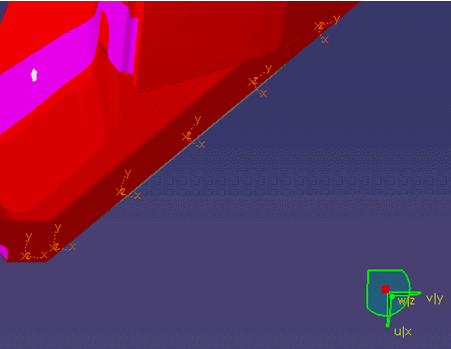
Tag Transformation Selecting Tag Transformation calls up the dialog boxes available when you use Transform Tag  .
.You cannot undo transformations made with this command by using the Reject button.
-
(Optional) To see the altered manufacturing locations on the 3D geometry, click the Apply button.
You can undo changes made by the Apply button by selecting the Close button without selecting the Accept button. -
(Optional) If you decide not to edit one or more of the selected fasteners, you may select fasteners within the Select Fasteners from List, and remove them by selecting the Remove button.
-
To undo the modifications, click the Reject button; otherwise, retain the modifications by clicking the Accept button.
-
Click the Close button.

- You can also modify the manufacturing location of a fastener by double-clicking on the fastener in the PPR tree.
- The position will be changed only if it falls within the Editing Constraints set in Tools > Options > (See Customizing > Fastener Attributes > Maximum offset to edit manufacturing position).
- If you select an unassigned feature, you get an error message stating that: Manufacturing location cannot be edited for an unassigned fastener.
- You can use the Tools Palette to select fasteners.
