| |
This lists specific terms or acronyms that are key to
understand and use with this command. It provides a definition for each,
which serves as reference.
External Axes device – It's a Gantry or a Rail device, on which a robot may
be mounted.
External Axes – Degrees of Freedom (DOF) of an external axes device.
If, auxiliary work piece is set with aux values then the command doesn't take these motions into
account while calculating rail values. |
 |
-
Click Compute Rail/Gantry Values
 , and select a Robot. , and select a Robot.
-
Then you will be prompted to
select a robot task to assign aux axes data. You can either select a robot
task from PPR tree, or select a robot, and then select one of the robot tasks assigned to robot from the list of tasks
shown in a dialog box.
-
Once
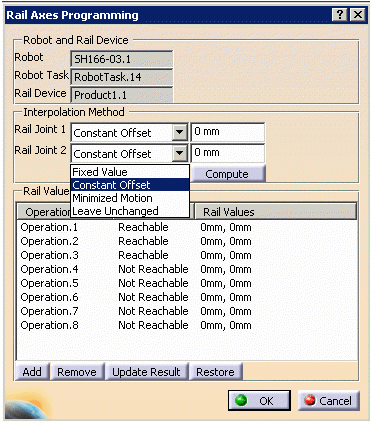
a robot task has been selected, a dialog box will be displayed allowing you to select an option for calculating aux
(auxiliary) axes values for each aux axis. Four options are available:
- Constant Offset
This option allows you to enter a constant offset value for the
aux axis. This offset will be added to the selected aux axis value
at each position. The resulting aux axis values will place the robot
base at a constant offset away from each position along the axis of
translation. If an aux axis value exceeds its joint limit, this
joint limit is assigned to be the aux axis value.
- Minimized Motion
This option enters an initial value for the aux
axis. This aux axis value will be assigned to each Tag Point in the
Path. When a Tag Point is unreachable with this aux axis value, the
aux axis value will be adjusted to minimize the external axis motion
required to reach the Tag Point. The minimum distance of an
operation is calculated based on previous operation position.
- Fixed Value
This option asks to enter a fixed value, which is assigned,
to each Tag Point in the Path.
- Leave Unchanged
This option keeps the current aux axis values unchanged.
The input values for "Minimized Motion" and "Fixed Value"
options should not exceed joint limits. Once you select a option and
provide the corresponding input, you can compute the aux values by
selecting the "compute" button. For all the options selected the
calculated aux values and whether the tag is reachable or not is
shown against each operation name.
|
Other functionalities are as follows:
- Remove
You can select (or multi select)
operations from the list of operations shown and remove them from the list.
The aux axes values of these removed operations will not be shown.
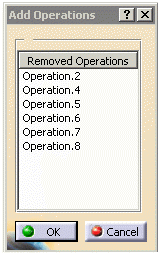
- Add
You can add the previously removed operations. On clicking on
"Add" button, a new dialog box will be displayed, showing the
list of removed operations. Selecting (or multi selecting) operations to add back to the original
list. On adding, the aux axes values
and the reach ability status at the time of removing the operation is
restored.
- Restore
You can select an operation and then
can restore original aux axes value and the reachability status by using
the "restore" button.
- Jog
You can jog the device to the calculated position by selecting the corresponding operation name.
- Update Result
You can select an operation from the list and can manipulate the position of robot for this operation.
In this case, if the tag point becomes unreachable the robot goes back to
the previous reachable position. After manipulating the device, if you select
"Update Result" then the aux axes value for the selected
operation is updated according to the current position of the robot.
- OK
You can assign the calculated/modified rail axes values to the tags by picking
OK.
- Cancel/Close
Dialog window
If you cancel the command or close the
dialog window, the original aux values are restored for all the operations in
that robot task.
|
-
You will be prompted to select a robot task to assign aux axes data. You
can either select a robot task from PPR tree or you can select a robot. Select one of the robot tasks assigned to the robot from the list of
tasks shown in the dialog box.
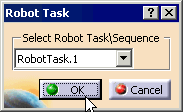
-
Select a task from the Robot Task dialog box or directly from PPR tree. When
selecting a task, the Rail Axes Programming dialog box appears.
-
After removing some operations from the operation list, click Add
and the Add Operations dialog box appears showing all of the
removed operations.
-
You can multi select the operations and click OK to read
the selected operations in the Rail Axes Programming dialog box.
You can select
multiple operations using the control key and clicking multiple operations.
-
If the variables are not set, these errors appear:
-
If there is no rail
track/gantry auxiliary device in the workcell or there is no rail
translational auxiliary axis in the workcell and you invoke this command, the following error message is
displayed:
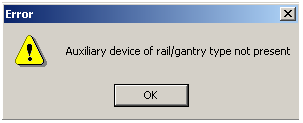
-
If there is no robot task in the workcell and you invoke this
command and select a robot, the following error message is
displayed:
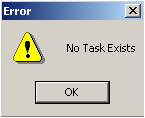
-
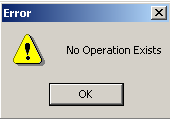
If there is no operation in the robot task and you invoke this
command and select a task, the following error message is displayed:
|
|
 Computing
Rail/Gantry Values
Computing
Rail/Gantry Values

