

In addition, the ABB robot IRB 6400_24_1.50.CATProduct was imported using the robot catalog. You can open the file and load this robot to follow along with the instructions contained in this procedure.
To use the catalogs, you must have access to a library. Possible sources of libraries include:
- the Standard Robot Library product (which is an add-on to this product's configurations)
- another custom-developed robot library
- a device library.

-
Click Open Catalog
 .
.The Catalog Browser appears. Depending on your previous use of the catalog browser, you may see a catalog browser like that shown below (which shows robot brands) or one like that shown in Step 2 (which shows types of robots within a brand).
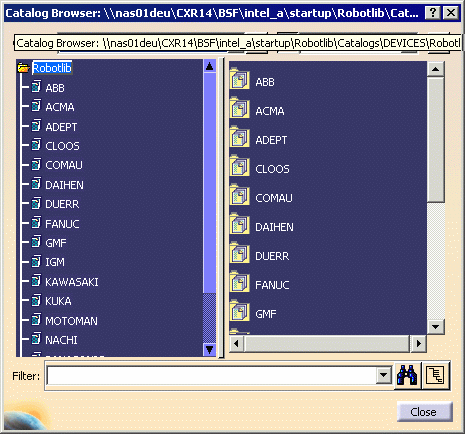
-
(If necessary) Select the robot brand of the robot you want from the catalog (e.g., KUKA).
The catalog of robot types available for that brand appears. 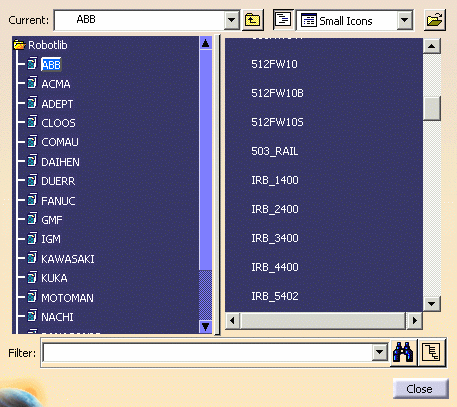
-
In the right side of the catalog browser, click the desired robot, and then move the mouse to the applications 3D geometry view.
An image of the robot with white crossed lines appears in the 3D geometry. The image and lines move as you move the mouse. 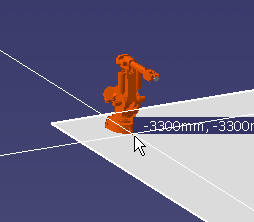
-
Move the mouse to the place where you want the robot placed, and click.
After the robot has been imported, it appears in the Resource List of the PPR tree: 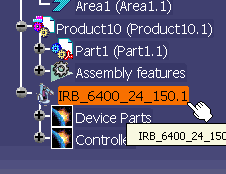
and in the 3D geometry: 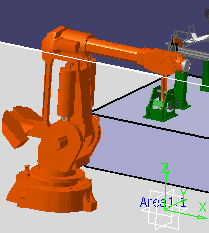
A second robot, with crossed white lines immediately appears next to the robot you just placed in the geometry. -
You can do one of the following:
To Do Import another robot of the same brand and type as the one just imported. Move the mouse to the correct position for the second robot. Import another robot of a different brand or type as the one just imported. Select another robot in the Catalog Browser dialog box and position it. Stop importing robots. Click the Close button.

