
You can create a 3d Meeting in order to be able to share viewpoints and annotated views among users.

 button.
 -
Click the Import from 3D viewer button to define the documents that will be the basis for the 3d meeting by taking the current content of an opened 3d viewer.
-
Select Create button.
The ENOVIA Instant meeting window is displayed. -
In the ENOVIA Instant meeting widow, select the Meeting Connection
 button.
The Meeting dialog appears that will indicate the other users who have joined the 3D Meeting.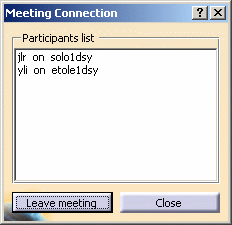
OR
You can also create a 3D meeting by selecting a document
-
Right-click a document you wish to be the basis of your 3D Meeting and select Create / Add in Meeting from the contextual menu.
Note: You can only Create / Add in Meeting the document you wish to be the basis of your 3D Meeting before the meeting is created.
The New Meeting dialog box appears.
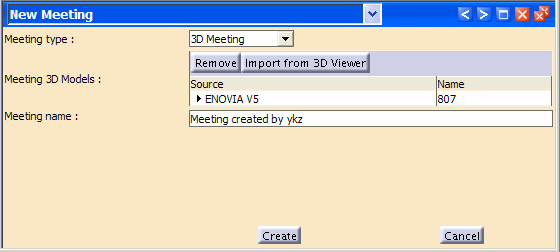
- Select
Create button.
The ENOVIA Instant meeting window is displayed. -
In the ENOVIA Instant meeting widow, select the Meeting Connection
button.
The Meeting Connection dialog appears that will indicate the other users who have joined the 3D Meeting.
You can see the meetings by following these steps.
-
In the Portal banner, click the Source selection button and choose Collaboration from the proposed list.
-
In the Portal banner, click the Type selection button and choose Meeting from the proposed list.
-
In the Portal banner, in the search text-entry field, enter the search criteria (the character "*" can be used as a wildcard).
-
Click the Search button.
An Search Results page appears containing the results of the defined query.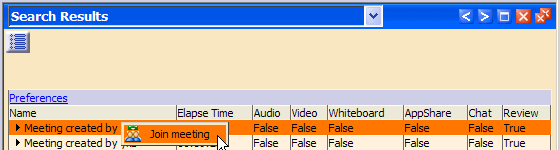
- Select Join Meeting.

All 3D document types supported for the Modular 3d com 3D viewer are now also supported for the creation of meetings.
