
A collaboration meeting enables you to exchange ideas and information with other people using a variety of means:
- simple chat
- whiteboard
- audio and video transmission
- file transfer

-
In the Community area, select the users you wish to initially invite to a new meeting and press the Add in meeting button
or
in the Community area, click the Meeting button. A
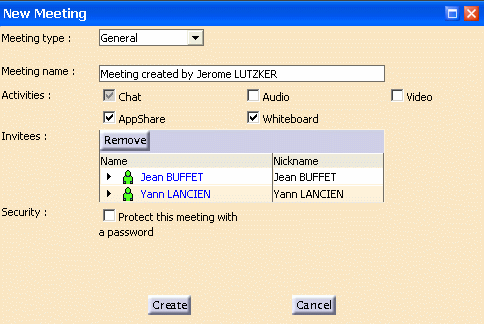
New Meeting area
appears.
button. A
New Meeting area
appears. 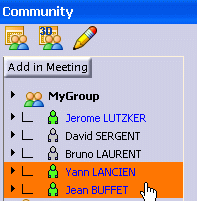
-
To add people to the list of invitees, select any number of people from your People list and press the Add in meeting button or select a group from your Groups list and press the Add in meeting button.
The corresponding people are added to the list of invitees. -
To remove a person from the list of invitees, select the person in the list of invitees and press the Remove button.
-
To define the meeting activities, check the desired activities checkboxes.
Note: It is not possible to modify the list of activities once a meeting has been created. -
If you wish to restrict the participants to your meeting, check the Protect this meeting with a password checkbox, enter the meeting password and then re-enter the password to confirm.
Note: You will need to communicate this password to the other participants you wish to have present at the meeting. Any random user who tries to join the meeting directly from the listed meetings will be asked for this password, and, lacking it, will not be allowed to join the meeting. -
When you've established the definitive list of invitees, click the Create button to launch the meeting. The Instant Meeting interface appears.
A message indicates that you are now the moderator and Invitations are sent to all invitees.

For detailed user information, see the Sametime documentation.
