
You can create two types of Groups:
- public groups, which have been defined in your company's LDAP directory and which cannot be modified.
- personal groups, which you define yourself and which you can modify at any time.

You will use the Search page to retrieve sets of groups,
which you can then save in your contact list as a public group or a
personal group.

-
In the Portal banner, click the Source selection button and choose Collaboration from the proposed list.
-
In the Portal banner, click the Type selection button and choose Group from the proposed list.
-
In the Portal banner, in the search text-entry field enter the search criteria (the character "*" can be used as a wildcard).
-
Click the Search button.
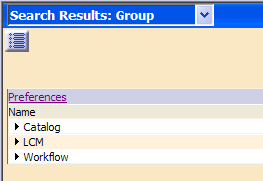
An Search Results page appears containing the results of the defined query.
or
-
In the Portal banner, click the Source selection button and choose Collaboration from the proposed list.
-
In the Portal banner, click the Type selection button and choose Group from the proposed list.
-
Click on the Advanced Access hyperlink in the Portal banner.
-
In the Advanced Access window, enter a search string for the Search Criteria in the text-entry field (the character "*" can be used as a wildcard).
-
Press the Search button.
The result appears.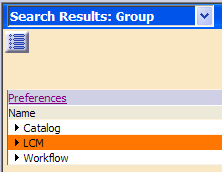
-
To add one of the groups in the results list to your contact list, right-click the group in the results list and select Add in contact list in the contextual menu.
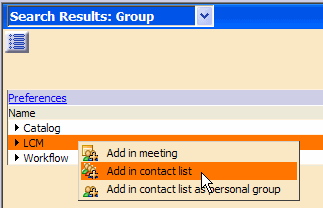
The group is added to the contact list as a public group
 .
. -
To add one of the groups in the results list to your contact list as a personal group, right-click the group in the results list and select Add in contact list as personal group in the contextual menu.
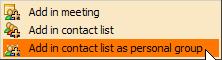
The group is added to the contact list as a personal group
 .
. -
In the Community area, click the Edit
 button. You can see groups that have been added to your contact list.
Note that groups in the contact list are persistent.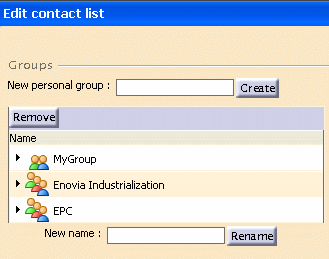
-
To remove a group (public or personal) from your contact list, right-click the group and select Remove in the contextual menu.
Creating a Personal Group from Scratch
-
To create a personal group from scratch, in the Community area, click the Edit
button.
The Edit contact list dialog box appears.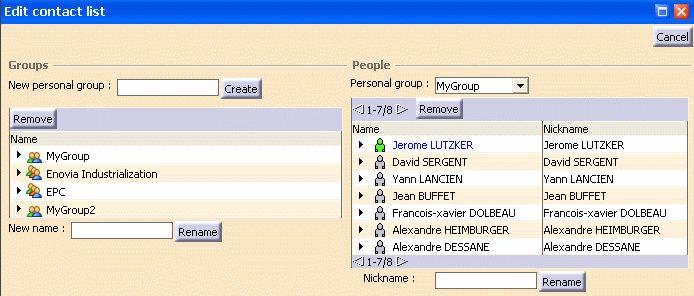
-
In the New personal group text-entry field, enter the name of your personal group and then press the Create button.
-
To add people to your newly created personal group, do a search as in steps 1 through 4 above, but choosing Type People in step 2. Select any number of people from the Search Results list, right-click, and select the group in which you wish to add the people from the proposed list of personal groups.
The selected people are added into the designated group in your contact list.
