-
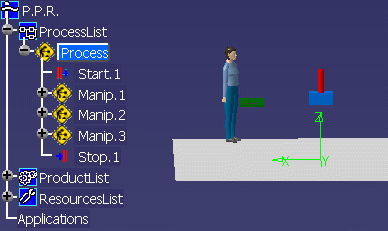
The manikin walks to the blue box, and a Swept volume
will be created.
-
In the Manikin Tools toolbar, select the
Swept Volume
for Manikin Simulation

-
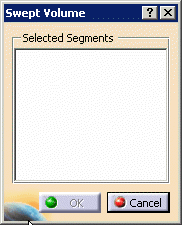
The Swept Volume dialog box appears.
-
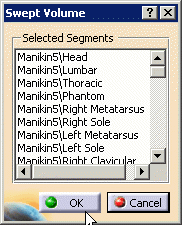
For the Selected Segments, select the manikin from the
PPR tree, or from the 3D geometry window. The dialog box appears with
all the segments selected.
-
Select OK.
-
The Swept Volume floating toolbar appears.

-
Select a Process activity
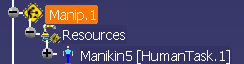 with a walk activity.
-
Select the Process Simulation
 in the Simulation toolbar. Select Run, and the manikin walks
over to the blue box. Deactivate the Process Simulation icon when
completed.
in the Simulation toolbar. Select Run, and the manikin walks
over to the blue box. Deactivate the Process Simulation icon when
completed.
-
Select the icon Stop Swept Volume Recording
 from the
Swept
Volume toolbar.
from the
Swept
Volume toolbar.
-
The Swept Volume dialog box appears.
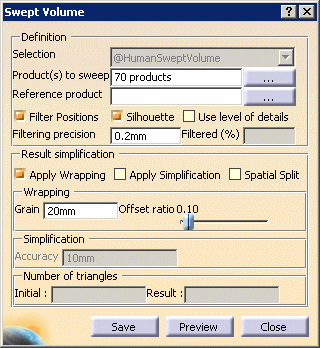
 For
more information on this panel, the reader can refer to the original
Swept Volume function (please see the DMU Optimizer and DPM Assembly
Simulation online user documentation).
For
more information on this panel, the reader can refer to the original
Swept Volume function (please see the DMU Optimizer and DPM Assembly
Simulation online user documentation).
-
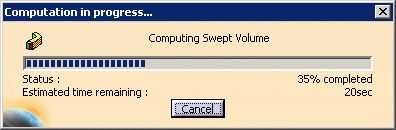
Select the options as shown above, and select Preview. The
Computation in progress dialog box appears.
-
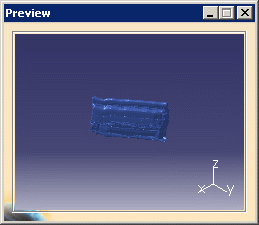
When completed, the Preview window appears with the
Swept Volume.
-
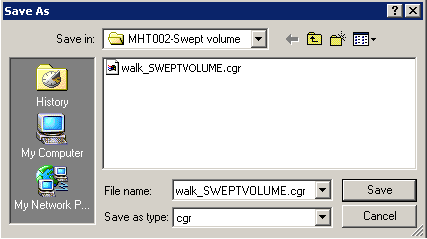
Select Save button in the Swept Volume dialog box.
The Save As dialog box appears. Save
-
After the save, you can
Import the Swept Volume.

