 |
This scenario shows you how to create a spot light. The
Light sources let you illuminate the objects to be rendered as you wish
for example, by highlighting a specific element in your scene, thus
focusing the viewer's attention. |
 |
If a Spot Light has been created in a CATProduct
file, and if this CATProduct file is imported within a CATProcess (as a
Resource or a Product), this Spot Light will not be seen.
This command is available provided the DELMIA Rendering
licenses are installed. |
 |
-
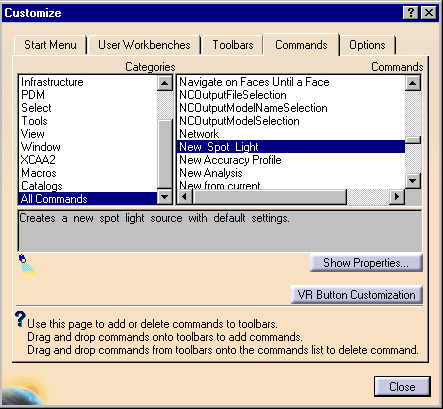
In the main menu, select Tools > Customize.
The Customize dialog box appears.
-
Select the Commands tab. In the Categories
window,
select All commands. In the Commands window scroll down and select
New Spot Light.
-
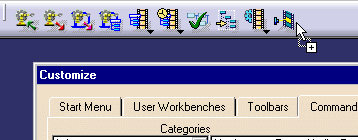
Click on the text, New Spot Light, and
drag it to a toolbar.
-
Releasing the mouse places the new icon
into the toolbar.

-
Close the Customize window.
-
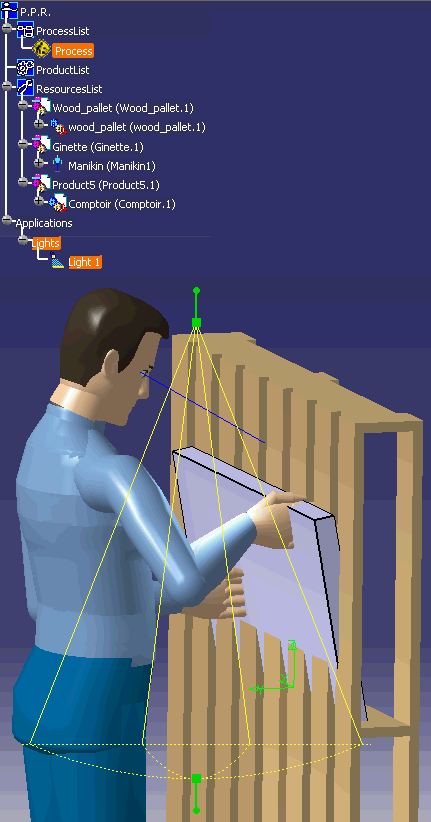
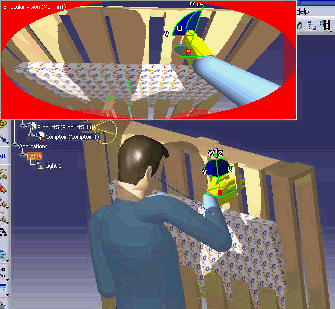
Select the icon New Spot Light, and using the
customizing you can alter the light as shown. See the
 Real
Time Rendering -> Light Sources -> Creating a Light source
of the documentation for customizing.
Real
Time Rendering -> Light Sources -> Creating a Light source
of the documentation for customizing.
-
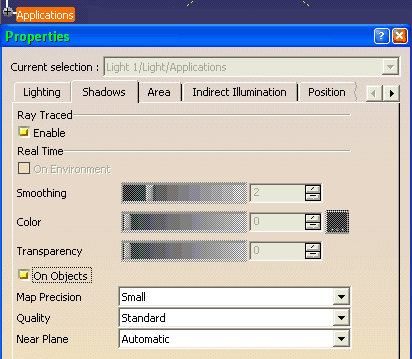
To activate the shadow, Right Click on
Applications, and in the Shadows tab, Select
Enable.
-
Using the
 Vision window
icon to view the process.
Vision window
icon to view the process.
|
