|
This provides a more realistic behavior of the
Biomechanics Analysis by allowing the use of loads positioned on
segments other then just the hands. Therefore, Biomechanics Analysis can be applied on manikin
having loads on shoulders, forearms and back. Moreover, in order to have a more accurate Biomechanics Analysis as possible with the presence of multiple loads, the notion of loads offset has been introduced. This is particularly true for the case of load applied in parallel with the manikin's back. Most of the time there is an offset between the load and the back. |
|
|
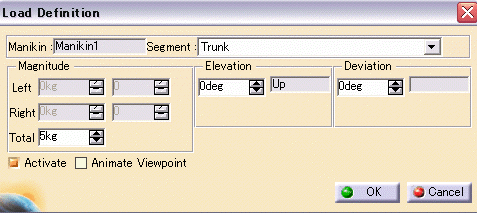
Create Load on Other Segments |
|
|
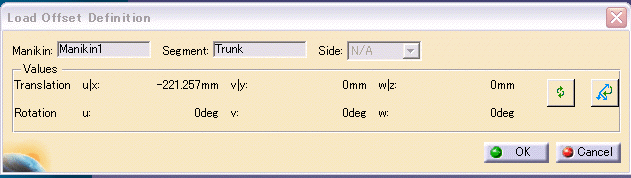
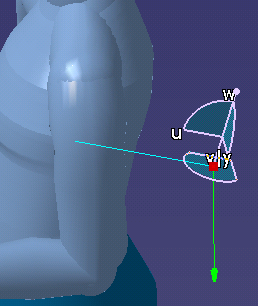
Create Load Offset |
|
|
|
|
Just as only one load can be added to one segment at a time, only one
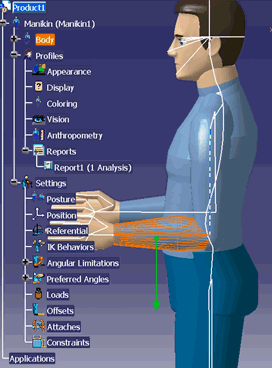
load offset can be added to a load. A load offset node for each load offset created is added in the PPR tree under the Loads Offset node. Each load offset node displays a description including the name of the load offset and the name of the segment to which the load offset is related. |

 and in the specification tree, select the manikin.