|
This task shows how to analyze
the connection between a curve's extremity and its projection, following a blend, match, or
fill operation.
|
 |
Open the
FSS_CCK_Surface_Curve01.CATPart document. |
 |
-
Click Connect Checker Analysis
 in the Shape Analysis toolbar.
-
Select both the curve and the surface to be analyzed.
|
| |
-
Click Connect Checker
 in the dialog box
and Projection option
in the Connect Checker analysis dashboard.
in the dialog box
and Projection option
in the Connect Checker analysis dashboard.
|
| |
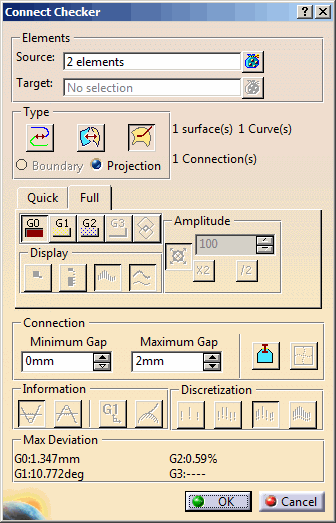
The Connect Checker dialog box is
displayed as well as another dialog box showing the color scale and
identifying the maximum and minimum values for the analysis type.
There's no Boundary mode available for
Surface-Curve connection. |
| |
|
| |
The Auto Min Max button enables to
automatically update the minimum and maximum values (and consequently all
values between) each time they are modified. |
| |
-
Select either of the options: G0,
G1 or G2. You can choose the type
of analysis to be performed using the combination: G0, G1, G2, or G3. The
G3 and Overlap
options are not available in Projection for the Curve-Curve option.
|
| |
-
Set the
Maximum gap
and Minimum gap
for the connection
analysis. The Connect Checker measures the gap of every
connection between each of the borders of each of the geometrical
elements, irrespective of the size of the elements.
- If the
value of the gap is greater than Minimum Gap
and less than
Maximum Gap,
the connection
is analyzed.
- If the
value of the gap is outside of these limits, the connection is not
analyzed.
There may be instances (such as very small elements, or very large
Maximum Gap) where the system finds connections which are
unexpected. In these instances, adjust the value of
Maximum Gap
until the unexpected connections are eliminated.
|
|
-
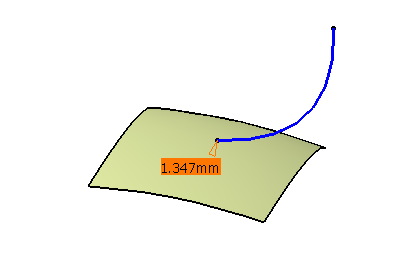
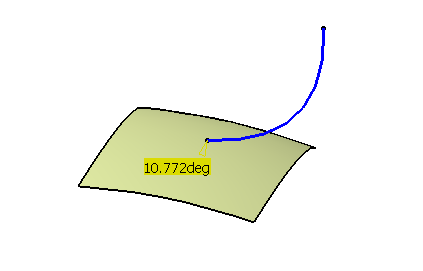
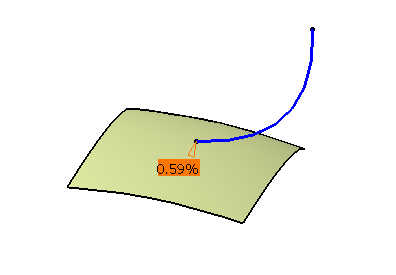
Check the analysis results on the geometry. The subsequent sections show the result of
connecting a curve and a surface with a combination between G0, G1
or G2 and Projection.
|
 |
G0 Continuity
|
| |
 |
|
|
G1 Continuity
|
|
|
 |
|
|
G2 Continuity
|
| |
 |
| |
|