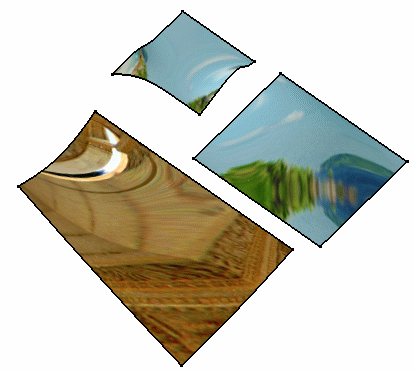
This task explains how to map a sample environment onto a surface generated using the FreeStyle Shaper.

- The different mapping analyses of the same surfaces cannot be displayed simultaneously, even if you have set the mapping analyzes in no show. You need to visualize them one after the other.

Open the FreeStyle_Part_24.CATPart document:
- If the No warning message if material mode is not ON
option is selected in Tools > Options > Shape > FreeStyle > General
tab, Mapping Analysis option area, it allows you to set the
material mode to ON automatically.
This option sets the material mode to ON even if the Materials option in the View > Render Style > Customize View command is cleared. No warning message is displayed asking you to change the material mode. The material is automatically seen for analysis. After completion of the analysis, the material mode returns to its initial state. - If No warning message if material mode is not ON option is cleared, the warning message is displayed asking you to set the Materials mode to ON. The material mode is not automatically set and not seen during analysis.


The Mapping dialog box is displayed.

-
Define the type of mapping to be applied using the drop-down list.
You can also import an
image file (of type .jpg, .bmp, .rgb) using the Browse icon:

-
Select one or more surfaces and apply different image definitions.
-
Set the reflectivity coefficient which defines the transparency of the texture using the slider.
The preview area lets you fine-tune these parameters.
-
Click OK.

You can click the
 icon to perform a global
analysis.
icon to perform a global
analysis.
The analysis (identified as Environment Mapping Analysis.x) is added to the specification tree.
The surfaces automatically reflect your mapping definition. It could look like this: