
You can easily perform mirror analysis of geometrical elements without adding the feature to the tree. This helps you to take an easy check on mirrored elements.
This task shows you how to:

Open the FreeStyle_Part_52.CATPart document.
Create a Mirror Element

-
Click Soft Mirror
 in the Generic
Tools toolbar.
in the Generic
Tools toolbar.
The quick mirror is performed on all the elements under the root node Part as per the symmetry plane set in Tools > Options > Shape > FreeStyle > General tab, Soft Mirror area, Symmetry Plane list. By default, ZX plane is set as symmetry plane.
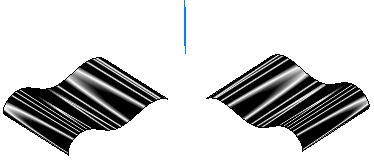

- Press Ctrl+F8 to use this command.
-
Click Soft Mirror
again.
The mirrored geometrical elements and freedstyle analysis are hidden. -
Create a surface.
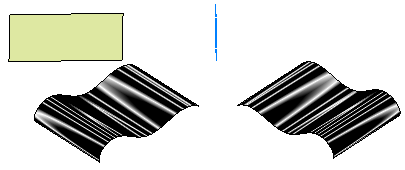
-
Click Soft Mirror
The updated soft mirror is displayed. The new, deleted or modified elements are included in the mirror update.

The mirrored elements and Soft Mirror analysis are not added to the specification tree.

Hide an Original Element while Mirror Creation
You can create mirror of an existing element around a symmetry plane by hiding the original element.
-
Open a 3D shape.
-
Click Soft Mirror, Hide Original
 in the Generic
Tools toolbar.
in the Generic
Tools toolbar.Alternatively, you can press Ctrl+F7 to use this command. The surface is mirrored as per the plane set in the Symmetry Plane list and the original surface is hidden.

-
Click Soft Mirror, Hide Original
again.
The original surface is displayed back.
