Cutting, Copying and Pasting Annotations in a Part

This task shows you how to cut and paste or how to copy and paste annotations in a Part.
Open the Annotations_Part_15.CATPart document.
  1. Select the annotation you want to cut or copy.

    Cutting

    To cut, you can either:

    • click Cut from the Standard toolbar
    • select Edit > Cut
    • right-click and select Cut, or
    • in the specification tree, drag the selection (although not a graphical cut, this is equivalent to the cut operation).

    This places what you cut in the clipboard.

    Copying

    To cut, you can either:

    • click Copy from the Standard toolbar
    • select Edit > Copy
    • right-click and select Copy, or
    • in the specification tree, press the Ctrl key and drag the selection.

    This places what you copy in the clipboard.

    Dragging and dropping annotations onto geometrical elements is a quick way to copy objects. However, note that the Enable Drag Drop for Cut, Copy, Paste use option in Tools > Options > General > General tab, Drag & Drop area, must be selected to use the capability.

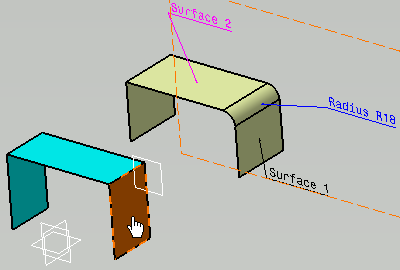
    In this case, select the annotation Surface 1 and click Copy from the Standard toolbar.

  2. Select the geometry where you want to paste the annotation.

    Pasting

    To paste, you can either:

    • click Paste from the Standard toolbar
    • select Edit > Paste
    • right-click and select Paste, or
    • in the geometry area drop what you are dragging.

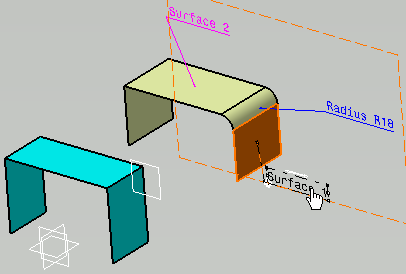
    Select the surface as shown.
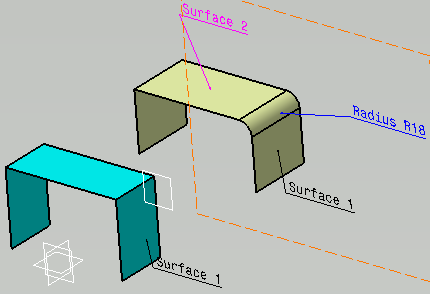
  3. Click Paste from the Standard toolbar.
    The annotation is copied on the selected geometry.
  • Annotations are pasted only on the active view.
  • You can select more than one annotation to cut/copy and paste.
  • Views, captures and constructed geometries cannot be duplicated using the Copy/Cut/Paste commands.
  • You may have to select one or more geometrical elements to copy/paste a annotation. For example a dimension between 2 faces, a text on several geometries.
  • 3D annotations copied from a Part (in Part context) can be pasted on another Part (in Part context) in a Product or Process document.
  • 3D annotations created at Product or Process level cannot be duplicated using the Copy/Cut/Paste commands.
  • Drag and drop does not work for distance dimensions, which involves more than one geometrical element.
  • Drag and drop works only when the annotations are selected from the specification tree.
  • Drag and drop when multiple annotations are selected, pastes the last selected annotation.
  • The position of an annotation obtained from the Copy/Cut/Paste or instantiated from Power Copy might not be the same as the original annotation. This is because:
    • The position of an annotation is based on the mathematical definition of the pointed geometry.
    • The pasted geometry may have different mathematical definition than the original geometry.

    You can utilize the annotation manipulation capability to move it to the expected position.


Using Paste Special

To paste the annotations using paste special:

  • Right click the required feature (target feature) on which the copied annotation is to be pasted and select Paste Special.
  • In the Paste Special dialog box, select As Result With Link.
    The non-editable result annotations are created with the link to original FTA annotations. In the specification tree, the annotation node appears with the mask on it.
    • The mask, , appears when the source feature and target feature are in the same document.
    • When the source FTA feature and target result feature are in same document and you modify the source feature, the result features is synchronized automatically.
    • When the source FTA feature and target result feature are in different documents and you modify the source feature, the synchronization status (synchronized or unsynchronized ) of the result features is also indicated using the masks.
    • The copy-paste as result with link is not supported for FTA proxy annotations (assembly presentation annotations or non-editable result annotations).
    • When the original source FTA features are modified, the corresponding changes are propagated to the result features.
    • When source FTA feature is deleted, the linked FTA result annotations are converted to authoring annotations.
    • When you import or export the FTA product, in the generated data, the result with link annotations lose the link with their source annotations and they are converted into authoring annotations.
    • The style and the position or orientation of a FTA result feature can be edited.
    • While pasting as a result with link, if the resulting datum references the geometry as the original datum, the checking rule of datum label unicity is ignored.
    • While pasting as a result with link, if the resulting datum target references the geometry as the original datum target, the checking rule of datum label unicity is ignored.
      The original and pasted datum target are considered as one datum target. Thus, separate count is not displayed with the datum. For example, A2 is displayed with the datum instead of A2,2.
      When you create the next datum target, the datum is displayed as A2, 3, ignoring the count datum target pasted as result with link.