
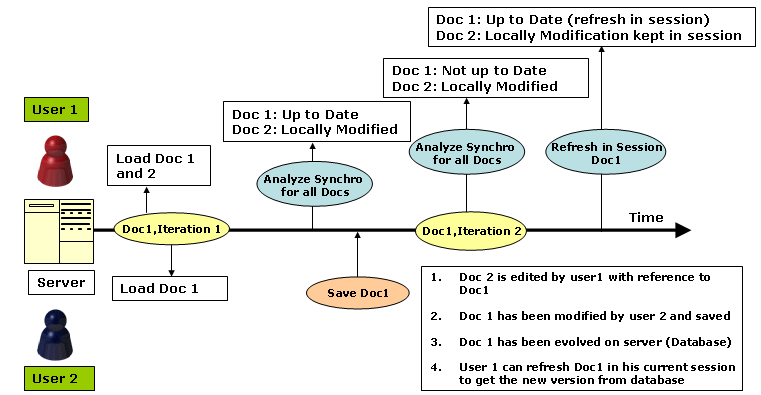
This functionality shows you how to use the latest iteration of the document in your CATIA session by just refreshing the document. With this you will use the latest document which may have been updated by another user in a separate CATIA session.
- Document iteration: In ENOVIA V5 server, you can update a document many times. Internally, each save will increment a counter called document iteration. This integer will always increase, and it is a more secure way to get history than timestamp. This counter is already used during pre-save checks; to ensure current document iteration in server and it is exactly the document iteration loaded in the CATIA session which wants to update the document.
- Document Revision/Version: Without configuration, each newly saved document will replace the server version, and previous version of document will be lost. Configuration allows user to keep and manage previous versions of a document.
- Unload Doc in CATIA: The concept is easy to understand, but some CATIA mechanisms (counter of references,…) control the “uses” of document, and it may be sometimes impossible to unload a specific document in CATIA.
- Document dirty: A CATIA document is said "dirty" if it has been modified in CATIA session, and so needs to be saved. If a document is "dirty" and if you try to close it, a warning appears informing you that some modifications will be lost if the document is closed without saving.
- Document locked in ENOVIA: Lock is mandatory to be able to save a document in ENOVIA. Note that you may have not locked document loaded in CATIA session, if you do not plan to modify / save them.


Refresh Documents
The Refresh Documents command allows you to unload the document in the session and reload the document available in database into the session.
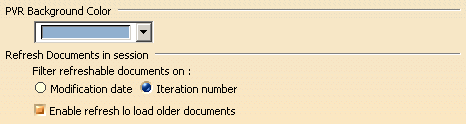
Criteria to Detect New Version in Database
There are two criterias to detect the update level of a document in the database:
- Modification Date (Based on Timestamp)
- Iteration Number
Select the required criteria in
Tools > Options > General >Compatibility > ENOVIA V5 VPM > Refresh Command in
Session.

- Open a CATIA session.
- Connect to ENOVIA V5 VPM

- Open an existing CATProduct containing CATPart in it, from the database. (Locked by another user).
- Create a sketch inside the CATPart.
-
Click
the
Refresh Documents
 in the ENOVIA V5
VPM toolbar.
in the ENOVIA V5
VPM toolbar.
The Refresh Document in Session dialog box appears. -
Click
More.
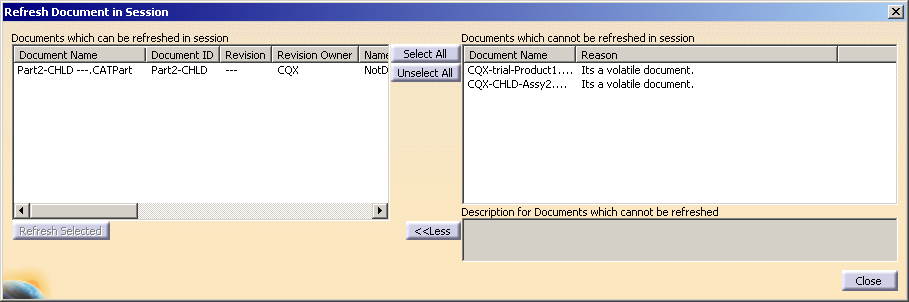

- The documents which can be refreshed (reloaded) in the session are seen in left box and the documents which cannot be refreshed in the session are seen in right box. (For more information about criteria defined for document refresh, See Rules Defined for Refresh.
- The newly created documents appears in the right table, with a Document not yet created in ENOVIA V5 VPM comment
- You can see the Document iteration in VPDM in the left box, for all the documents which can be refreshed. The Document iteration in VPDM is displayed using the following symbols:
- = indicates that document in database and in CATIA V5 session are identical.
+ indicates that document in database is more recent than document in CATIA V5 session (For example: Another user has updated this document in the database).
- indicates that document in the database is older than document in CATIA V5 session. A modification performed by user in CATIA V5 session could be lost during Refresh operation if selected.
- Select CATPart from the list to refresh.
- Click
Refresh Selected
button.
The CATPart will be reloaded from the database. - Close the Refresh Document in Session window.
Rules Defined for Refresh
- You can reload the selected document from
the database into the session under following defined conditions:
-
NotModified: No modification has been performed on the Object. A document seen as NotModified does not need to be saved.
-
Modified: A modification has been performed. Document needs to be saved.
-
AttachedDocModified: The document is not Modified, but it’s linked document has been Modified. Note that this status is never reported to the End User.
-
ModifiedBySynchro: An Instance has been added in a sub-assembly and Sub-assembly is saved. When opening the Assembly which contains sub-assembly, (the Father of sub-assembly) will be seen as ModifiedBySynchro.
-
Rules for a CATPart:
| No modification |
CATPart document is
Modified. |
||||
| All Pointing documents are NotModified | All Pointing documents are AttachedDocModified Or NotModified | At least one pointing document is ModifiedbySynchro | At least one pointing document is Modified | ||
| Unload available on CATPart? | Yes | Yes | Yes | No | No |
>Rules for a CATProduct:
| No modification |
>CATProduct Document is
AttachedDocModified. |
||||
| All pointed documents are AttachedDocModified Or NotModified | All pointed CATPart are unloadable | At least one pointing document is not from type CATPart and Modified Or ModifiedbySynchro | At least one pointing CATPart is not unloadable | ||
| >Unload available on CATProduct? | Yes | Yes | Yes | No | No |
-
In an assembly containing a CATPart document, the geometry and all information related to the document can be updated in CATIA session. If the position of an instance of a CATPart has been modified, it will be updated by the Refresh Documents command.
-
You can refresh a CATPart document even if pointing documents of this CATPart are modified.
-
You can refresh a CATPart if no instance or reference of this CATPart is seen as To Be Saved in the VPMNav Save panel. There are some exceptions to this rule, BlackBox rules are still available. So if a Part is pointed by another modified CATPart, Refresh is not possible.
-
The basic rules consist to check in each exploded document if some objects such as Part Instance Assembly Relation or Reference are logged in this document and seen as To Be Saved If an object is logged in an exploded CATProduct, only the last one is persisted in the Log.
Selecting Attributes for Refresh Document in Session
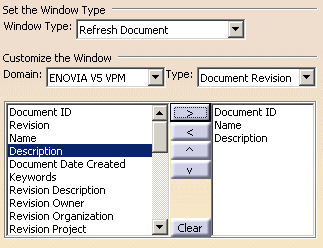
This task shows you how to determine which attributes to be displayed for the refreshable document. The attributes displayed for Documents which can be refreshed in session help you in selecting the required document revision.
- Select Tools > Options > ENOVIA V5 VPM > VPM Search.
- On the VPM Search Properties tab, in the Window Type select Refresh Document.
- Under Customize the Window, select Domain and Type.
-
Select the
attribute you want in the left box and click the right arrow button to
add the attribute.
- Click Ok .
- You can click upward and downward arrow to determine the sequence of the attributes.
- If you click Clear button, all the selected attributes get cleared.
- The attributes information in the Refresh Panel is available for only CATParts and CATProduct (save as Black Box entity). The attribute information is not displayed for Reference and Instance attributes information will not be displayed in the panel.
