
This task shows you how to delete Part Version, Document Revision, Capture and VPMClash. This frees up shared resources by deleting superfluous data.
When deleting Part Version, Document Revision,
Capture and VPMClash, the Delete Object
 command can be accessed in the contextual menu of the search result
window, or from the VPM Edition toolbar.
command can be accessed in the contextual menu of the search result
window, or from the VPM Edition toolbar.

-
To delete a Part Version, Document Revision, Capture or VPMClash, right-click it and select the Delete Object
command in
the contextual menu of the search result window. For document revisions
this command can be accessed in the impact graph
as well.-
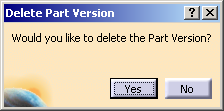
If you select a standalone Part Version, the following Delete Part Version dialog box appears.
-
I
Note: To know rules for Delete command, see Rules For deleting Part Version and Document Revision. -
-
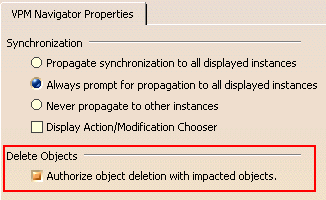
To delete a Part Version which has impacts, activate Authorize object deletion with impacted objects.
-
Select Tools > Options.
-
Under Options navigation tree, click ENOVIA V5 VPM, and click VPM Navigator.
-
On the VPM Navigator Properties tab, under Delete Objects, select the Authorize object deletion with impacted objects check box.
-
-
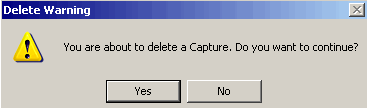
Select Yes.
Several checks are now made:-
to ensure that the objects with dependency links will be deleted.
-
to ensure that, if the selected object is a Part version, it has no instance link. If a link is found, an error message will appear telling you that the object cannot be deleted
-
P&O checks are made.
The selected object is deleted. The impacted object is not deleted.
-

-
You can only delete one object at a time.
-
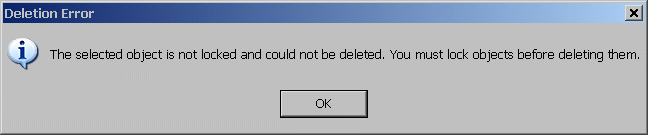
If the object to be deleted or one of its associated objects has not already been locked, the following error message will appear:
Rules for Deleting Part Version and Document Revision
Deletion Rules for Part Version
-
If you try to delete a Part Version which has at-least one usage, a Deletion Error message appears.
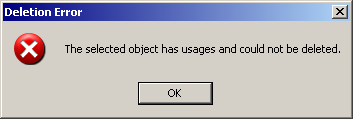
The Part Version is not deleted because it has usages. - Part Version which has Exposition/primary-representation link
with a Document Revision and has no usages, can be deleted.
Following dialog box appears.
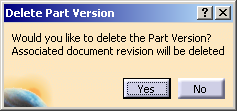
- Part Version which has Exposition/primary-representation link
with a Document Revision and has no usages, but impacts on other
objects. In this case the Part Version cannot be deleted.
- To delete the Part Version with Impacted objects, activate
Authorize object deletion with impacted objects, and then delete
Part Version. The following Delete Part Version message
window appears
and only Part Version gets deleted.
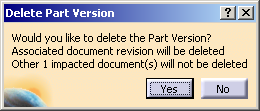
- If you try to delete a stand alone Part Version, the Part Version gets deleted.
Special cases of Part Version selection
-
If you try to delete Part Version which is associated with one or more PVR(s), the following Deletion Error message appears and the Part Version do not get deleted.
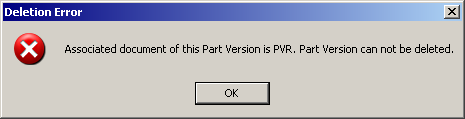
- If you try to delete Part Version which is associated to more
than one Document revision (without Exposition /
primary-representation link), only the Part Version gets deleted.
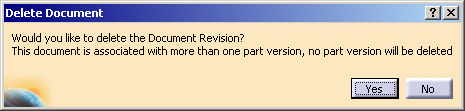
- If you try to delete Part Version which is associated to more than one Document revision (all DR have Exposition / primary-representation link), only the Part Version does not get deleted.
Deletion Rules for Document Revision
-
If you try to delete a Document Revision linked to a Part Version which has at-least one usage and which has Exposition / primary-representation link, a Deletion Error message window appears. The Document Revision is not deleted because it has usages.

- Document Revision that is linked to Part Version which has Exposition /
primary-representation link & has no usages, but impacts on other
objects. In this case the Document Revision cannot be deleted. To delete the DR
with Impacted objects, activate Authorize object deletion with
impacted objects, and then delete Document Revision. The following
Delete Document message window appears and Part Version and Document
Revision get deleted.
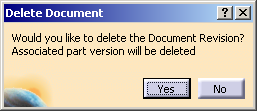
- If you try to delete Document Revision which does not have exposition link / primary-representation link, the Delete Document window appears and the Document Revision gets deleted.
- If you attempt to delete a document revision that is attached to
more than one Part version only the document revision will be
deleted.
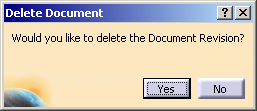
Likewise, if you attempt to delete a Part version that is attached to more than one document revision only the Part version will be deleted. - If you try to delete a standalone Document Revision, the Delete
Document message window appears, and the Document Revision gets deleted.
Deleting PVR from VPM Search Results Window
This task shows you how to delete PVR from the VPM Search
Results window.
When you perform delete command from VPM NavigatorSearch, the PVR
automatically gets detached from the parent object and the gets deleted
from the ENOVIA database.
-
Search an existing PVR. For more information, see Searching for a Product View Result. The Search Result window appears with the searched result.
-
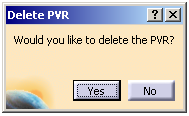
Select and right-click the PVR you want, and then click Delete. The Delete PVR confirmation window appears.
-
3. Click Yes to delete the PVR. The PVR is deleted from the database.
-
If you try to delete a PVR which has impacted on some other object, the following error message window appears.
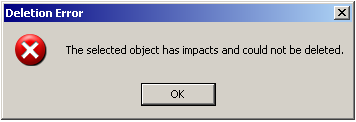
To delete a Part Version which has impacts, you need to activate Authorize object deletion with impacted objects.
-
Select Tools > Options.
-
Under Options navigation tree, click ENOVIA V5 VPM, and click VPM Navigator.
-
On the VPM Navigator Properties tab, under Delete Objects, select the Authorize object deletion with impacted objects check box.
-
You need to lock the PVR before you delete it. If you try to delete an unlocked PVR, an error message appears.
-
You cannot delete a PVR which is locked by other user.
-
You cannot delete a PVR which is in Approved State.
-
You cannot delete a PVR whose Parent object is unlocked.
