This task shows you how to open objects for editing purposes.

-
Either in the Product tree itself or in the search result window (see Using the Search Workbench document under VPM Navigator Basic Tasks) or else in an impact analysis window (see Using the Impact Graph Workbench topic found in the VPM Relational Design section of VPM Navigator Basic Tasks), right-click the object you want to open and, in the contextual menu, select the Open... command. Alternatively, you can select the object in the Product tree then select the Open
 command in the VPM Navigator toolbar.
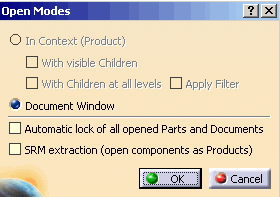
The following dialog box appears.

-
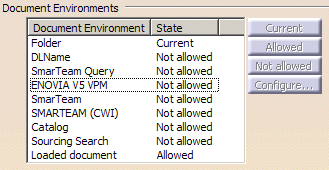
In the Options tree, click ENOVIA V5 VPM, and then click ENOVIA V5 VPM Options tab.
Under Open Options, choose the Load CGR option available

-
In the Options tree, click ENOVIA V5 VPM, and then click ENOVIA V5 VPM Options tab.

-
-
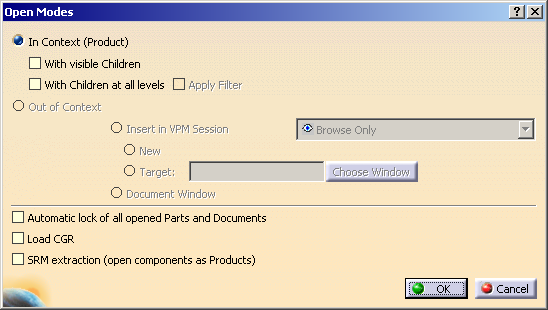
Select the open mode (see Open Modes below).
-
If you choose to open the selected object(s) in context, three options will be available to you:
-
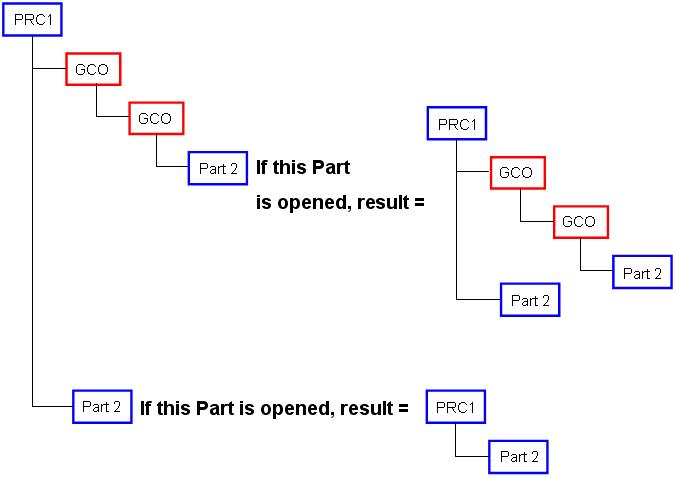
In Context option alone (without selecting the With visible Children or With Children at all levels options) refers to the Open in Context mode which allows you to open the selected parts up to its Product Root Class (PRC) in its context. It means that the relevant assembly constrains are loaded too.
-
With visible Children option selected, the selected parts are opened with their visible children (according to assembly relations) in the VPMNav navigator window.
-
With Children at all levels and Apply Filter cleared, the selected node(s) in Product structure on VPMNav window, and all its children existing in database is opened In Context in CATIA window.
-
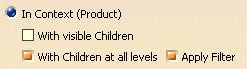
With Children at all levels and Apply Filter selected, the applied filter of the current VPM Navigator window is applied to the PRC and the selected parts are opened with filtered children.>
-
Apply Filter option is available only for With Children at all level option.
-
Apply Filter option is unavailable when you open an object from VPM Search and Impact graph.
-
-
The result is identical as the result obtained by a user making the following steps:
-
With the set of selected item(s), execute Expand All.
-
Re-select the initial set of selected item(s), execute Select Under (Part Instances).
-
Selecting the Open command.
-
-
-
Selection of the Insert in VPM Session and Document Window buttons is memorized so that when you next display the Open Modes dialog box, whichever of these buttons you last selected will reappear selected. However, this is not true of either the New or Target buttons.
-
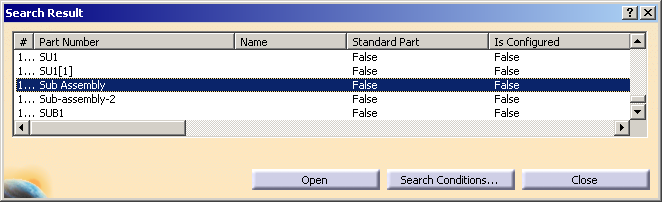
In the search result window for Filter Capture, select the object. Right-click the object and select Execute and Open. The Open panel is displayed as shown below.
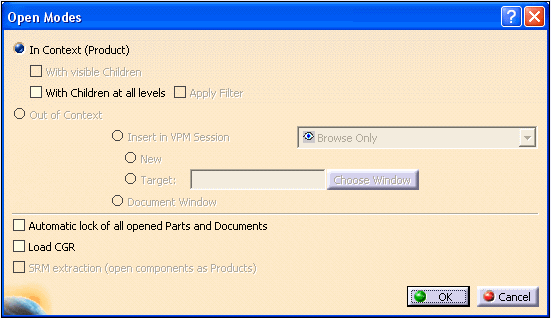
Only the option With Children at all levels is enabled.
If the user selects this option, then the equivalent of a Select Under is done and all children at levels are retrieved on all Part Instances retrieved previously.
-
-
If you want to acquire the object from the ENOVIA database when opening it, click the Automatic Lock of all opened Parts and Documents box at the bottom of the dialog box. For more information about this, see Locking and Unlocking in the VPM Configured Product Design section of VPM Navigator Basic Tasks.
-
Document revisions and their corresponding Part versions can be locked using the Automatic Lock of all opened Parts and Documents box. However, references of assemblies in Structure Exposed mode and Part instances cannot be locked using this option.
-
As long as a Part or document remains open in unlocked status in one CATIA window you cannot use the Automatic Lock of all opened Parts and Documents box when you open the same Part or document in the same or another CATIA window. You must first close the CATIA window where it is in unlocked status.
-
-
Click OK.
The objects are opened and if you selected the Automatic Lock of all opened Parts and Documents box, the lock status of the loaded data is automatically refreshed if present in a VPM Navigator window.

-
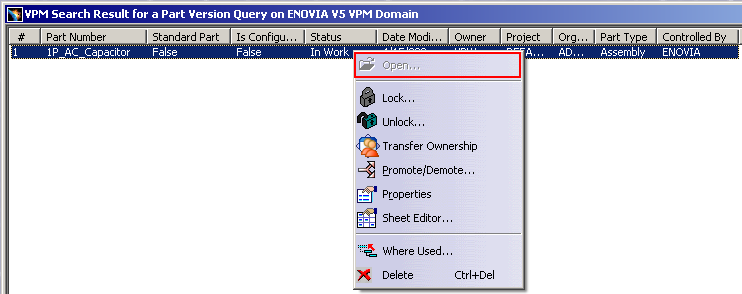
You cannot select more than one PRC at a time from the search result window. Should you attempt to do this, the Open command will be grayed out in the contextual menu.
-
If you also have the license for the product VPM Work Package Exchange, the Open Modes dialog box will also include, at the bottom, the SRM extraction (open components as Product box. For more information about this, see "Extracting ENOVIA V5 Data Using VPM Navigator" in the VPM Work Package Exchange User Guide.

Open Modes
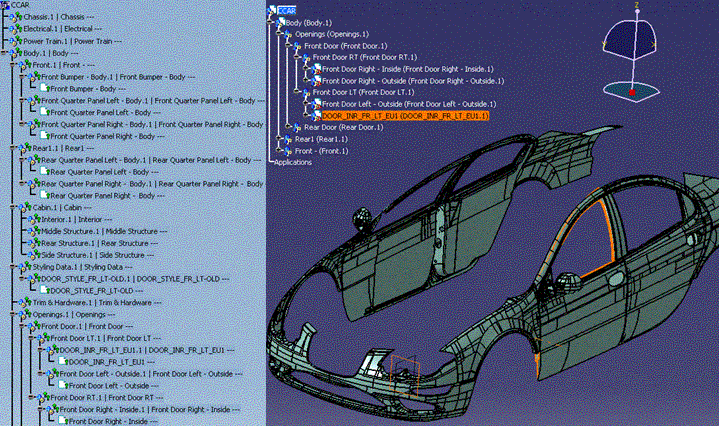
The tree of the selected object is opened and displayed
within the appropriate context i.e. with all its parents as far as the PRC.
For example, if you select a CATPart instantiated on a PRC, the CATPart
opens with the PRC and the associated instance. You can see the geometry,
all the parent instances and the PRC.
The tree of the selected object appears out of context.
For example, if you select a CATPart instantiated on a PRC, the CATPart
opens without the PRC and the associated instance. You just see the
geometry but you do not see the position of the instance.
The Out of Context mode allows you to:
-
open objects in a new or existing VPM Session (by means of the Insert in VPM Session button):
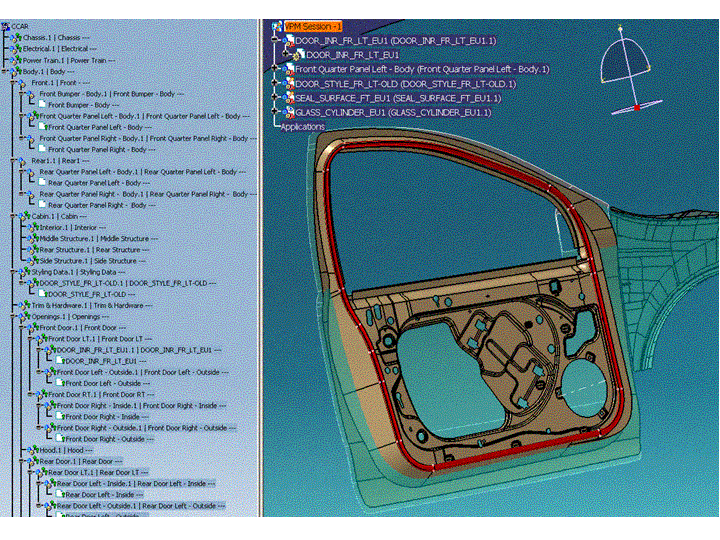
For more information about this workbench, see VPM Session: Working with Reference Data from VPM Navigator under the VPM Relational Design section of Basic Tasks in VPM Navigator. -
open each selected object as a document in a separate design window (by means of the Document Window button).
If several Part references or Part instances are opened, they are each opened in a different window.
The table below indicates which objects can be opened in and out of context.
| PRCs | Documents | Technological Packages | |||
| YES | NO | YES | NO | YES3 | |
| YES/NO1 | YES2 | YES | YES | NO |
1 = from a Product tree but not from
a query window or impact graph
2 = Part References are not displayed in the Product
tree, only as the result of a query.
3 = Before opening a technological package in a
CATIA Design window, its context should first be opened.
When objects can be opened in either mode, the Open Modes dialog box appears with the In Context (Product) button already selected as it is the default open mode. Otherwise, the Open Modes dialog box opens with the one available mode, the Out of Context mode, already selected.
-
When you open unlocked data there are no warning messages to inform you of this. However, should you subsequently attempt to save such data you are told of this by the information contained in the Save in ENOVIA V5 dialog box (see Saving Objects in the VPM Configured Product Design section of Basic Tasks in VPM Navigator) and if you then nevertheless proceed with a save of unlocked data you will receive a warning message.
-
When opening Parts or documents owned and locked by another user you will not receive any warning message.
If you prefer to be informed of this by a message you must set the variable VPMNavCheckLockAtOpen to 1 . However, be aware that this has an adverse effect on performance. -
You can open two versions of the same part in the design mode. The two versions are loaded in the same assembly and at the same time. This behavior is available only for CATParts and for data saved in structure exposed mode under client side runtime variable
CV5EV5_Open2Versions=VersionsOnly.- You can open one version, switch to design mode, and open the second.
- You can open two versions at the same time.
- You can open two versions at the same time, switch first to design mode, and switch second to design mode.
-
The capability to open two part versions is available only for Open and Load Children commands. It is not available for Insert command.
-
Part instances loaded with the same name are renamed. The new instance name will have a # character and a number.
-
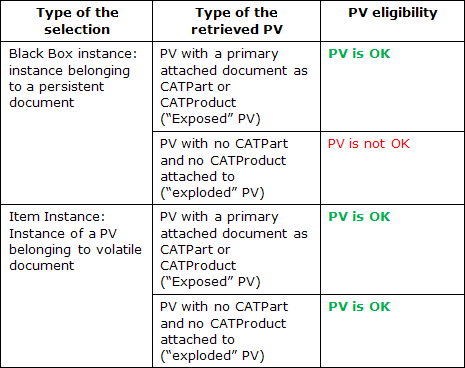
You cannot open out of context a Part version that has no document.

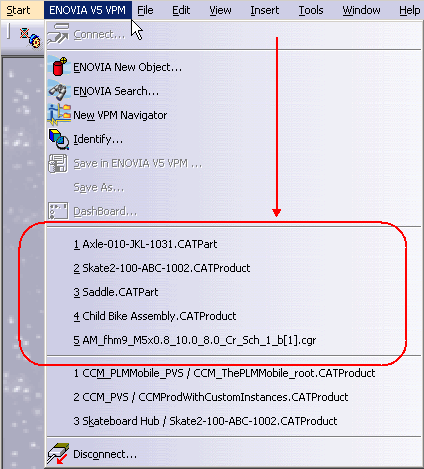
 Opening Most Recently Used Documents