
Assign Engineering Requirement is used to interactively
select one or more Engineering Requirements and to associate them to an activity. Once an Engineering Requirement (ER)
is assigned to a process in DPM, a link is created between the process and the
Engineering Requirement. Multiple Requirements may be
associated to a single activity. In the same manner, a single Requirement may be assigned multiple times to
different processes.
is used to interactively
select one or more Engineering Requirements and to associate them to an activity. Once an Engineering Requirement (ER)
is assigned to a process in DPM, a link is created between the process and the
Engineering Requirement. Multiple Requirements may be
associated to a single activity. In the same manner, a single Requirement may be assigned multiple times to
different processes.
Partial and Complete Assignment
An Engineering Requirement may be un-assigned, or assigned as either a Partial or Complete implementation.
When Partial is selected, the specifications defined by the Engineering Requirement are only partially met at the assigned activity, and the ER still must still be processed by another activity before it can be reconciled. An Engineering Requirement may be partially implemented by multiple activities.
When Complete is selected, the specifications defined by the ER are entirely satisfied at the assigned activity, and the ER is considered to be fully implemented.

The Assign Engineering Requirement command is available only in the context of a process stored in the Manufacturing Hub.

Assigning an Engineering Requirement
-
Load a project from the Manufacturing Hub.
-
Insert a product from the Hub containing one or more Engineering Requirements.
-
Click Assign Engineering Requirement
in the
Engineering Requirement Planner toolbar. -
When you select a product, a check is made by the software to determine if the selected part is in Visu (visualization) mode. If so, then the Switch to Design Mode dialog box appears.

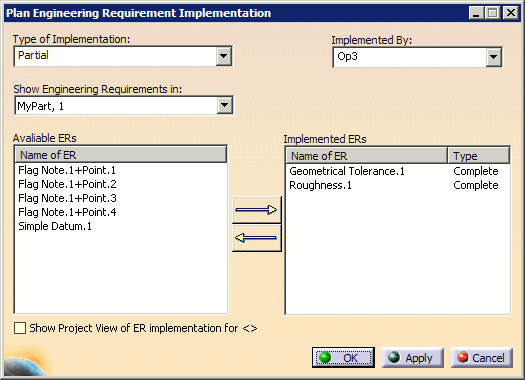
If the selected part is in visualization mode a dialog box appears and you will choose to switch the part or leave it as is. This prevents an accidental switch of a part to design mode. The switch to design mode is time consuming if the part has large amounts of mathematical data. If the part is already loaded in the Design mode, then no dialog box is presented. This functionality is useful only the first time when you want to assign engineering requirements. Click OK, if needed, to switch the part to Design mode. The Assign Engineering Requirement dialog box is displayed when the part is in Design mode.
-
Click the Type of Implementation list to indicate whether to assign the ER as Partial or Complete.
-
Once you have selected a Type of Implementation, future associations of Engineering Requirements to the operation will be of the same type. By default, this value is set to Partial.
-
Click the Show Engineering Requirements in: box to select from the parts and products currently loaded DPM:
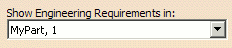
Upon selecting a part, all of the Engineering Requirements inside the part or product become available for consumption and are listed in the Available ERs list. Note that this dialog box shows only those parts and products that are loaded in the current DPM session.
Multiple Engineering Requirements can be selected by any of the following methods:
-
Holding the CTRL key and selecting Engineering Requirements in the PPR tree
-
Holding the CTRL key and selecting Engineering Requirements in the 3D viewer
-
Using the selection trap methods provided by the Tools Palette toolbar:

This toolbar is displayed upon selecting any item when the Assign Engineering Requirement is active.
-
-
Select an operation from the Implemented By: list to assign the operation to the ER.
If any ERs have been previously assigned to the selected operation, these ERs are shown in the Implemented ERs list.
The Available ERs list indicates all of the ERs that are available for consumption in the selected part or product for the current DPM session. Note that the ERs shown in this list are only those whose property has been set as consumable by the design engineer.
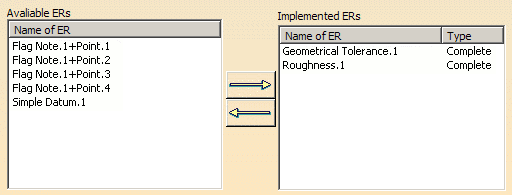
This list displays all of the ERs which are not at all implemented, as well as those that are partially implemented, in the current DPM session. Once an ER has been completely implemented by an operation in the current V5 session, that particular ER will no longer be seen in the list of Available ERs.
When an ER is selected from this list, it also becomes highlighted in the 3D window. In the same manner, an ER selected in the 3D window becomes highlighted in the list. This behavior makes it possible to assign an ER from either the 3D window or the Dialog List.
The Implemented ERs list indicates ERs in the selected ARM Part that have been assigned to the selected operation (see Step 6, above). It also indicates the type of assignment (Un-assigned, Partial, or Complete). Use the right mouse button to select an ER and change its type from Complete to Partial; Partial to Complete; or Un-assign for the current opertion. See Designating Assignment Types.
Use the left- and right-arrow buttons to move selected Engineering Requirements from the Available ERs list to the Implemented ERs list, and vice versa.
Editing relation attributes
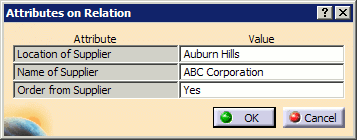
When the right arrow is selected to move Engineering Requirements to the Implemented ERs list, the Attributes on Relation dialog box displays attributes that you have defined in the Manufacturing Hub:
 5
5After entering values for the attributes, select OK to close the dialog box.
-
Select the Show Project View of ER implementation check box to provide a global view of the consumption for all ERs in the selected part or product:
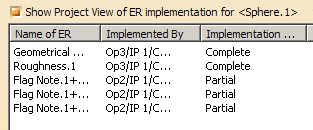
This read-only list indicates where the ERs for the selected part have been implemented, providing the absolute path of the operation in the Manufacturing Hub database as well as what type of assignment has been made. If a particular ER has been assigned to multiple operations it will appear multiple times in this list.Note: The project view of ER implementation is not refreshed automatically. If you have initially selected a part, and then clicked on Show Project View of ER Implementation, the project view of consumption is shown for this part. Later on, if you change the selected part, the information shown does not get refreshed automatically. This limits the impact on performance. If you want to refresh the project view, clear and re-select the check box.
-
Click OK to make the indicated assignments and/or unassignments and close the Assign Engineering Requirement dialog box. Alternatively, clicking Apply will also make the indicated assignments and/or unassignments but will leave the dialog displayed, and the Cancel button will close the dialog without making any changes.
