
The Load Engineering Requirements command provides the ability to load only those ARM Parts which store Engineering Requirement information for the subset of products that you are working on. This is useful in scenarios where there are many CATParts and ARM Parts (which store the Engineering Requirement information between those CATParts) under a given Product node. When working on only a small subset of the products, it is not necessary to load all of the ARM Parts and CATParts.

- This command is only available from within a Manufacturing Hub context, and is not available in file-based process documents.
-
This command requires that you have access to the ENOVIA server where the ARM parts of interest are stored.

-
Click Load Engineering Requirement
 .
. -
Select the products for which Engineering Intents are to be loaded.
-
The products selected in the previous step are listed in the Load Engineering Requirements dialog box:
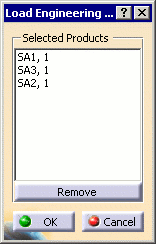
Products may be removed from the list by selecting them and clicking the Remove button.
-
Select individual ARM parts from the list that are to be loaded, or enable Load all ARM Parts to load all of the parts in the list.
-
Click OK to load all of the parts in the DPM session.
