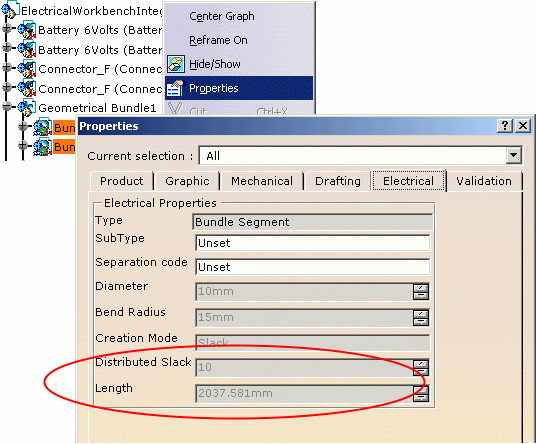
And moreover, new properties have been added to a number of electrical components:
Functional equipments and connectors defined in EFD Electrical bundle defined in EWR Bundle segment defined in EHI


A CATProduct document may contain references or instances
of the components.
Let's see the differences on the following documents:
-
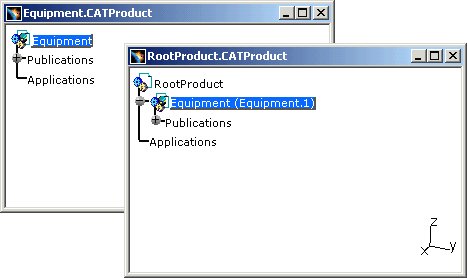
The Equipment.CATProduct contains an equipment.
It is the reference of the component. -
The RootProduct.CATProduct contains an occurrence of the equipment (Insert > Existing Component...).
The Equipment(Equipment.1) is an instance of the component.
-
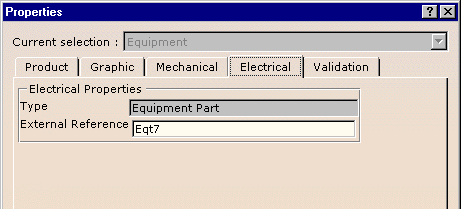
In the Equipment.CATProduct, if you edit the properties of the Equipment, you will display the properties of the reference.
Type and External Reference are attributes of the reference.
If you modify them, all the occurrences will be modified.
-
In the RootProduct.CATProduct, if the RootProduct is active (in blue in the specification tree) and if you select the Equipment.1 to edit the properties, you will display the properties of the instance:
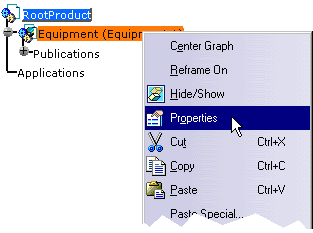
The instance also has instance attributes: Reference Designator and SubType. 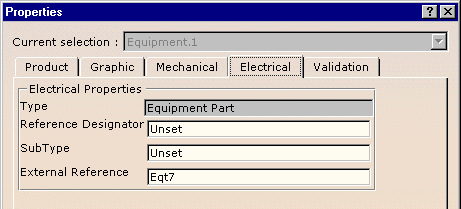
If you modify the attributes of instance, only this instance will be modified. On the other hand, if you modify the attributes of reference, they will be modified in all the occurrences and in the reference document.

- The Reference Designator attribute can be modified in both electrical and mechanical application workbenches. The value is synchronized by using a knowledgeware rule when it is changed in either one of the two applications.
- Create a knowledge rule to keep both the attributes synchronized. The rule should ensure that when one of the duplicate attributes is modified, the related attribute is updated. You can write the rule such that a message is displayed whenever the attribute is changed.
- The rule should be triggered from Edit > Properties against the object being edited.
- Triggering the rule is managed by using the Project Resource Management (PRM) command. For more information on Project Resource Management, see Tubing Design User's Guide: Customizing: Project Resource Management.
-
In the RootProduct.CATProduct, if the Equipment.1 is active (double-click Equipment.1) and you select the Equipment.1 to edit the properties, you will display the properties of the reference:
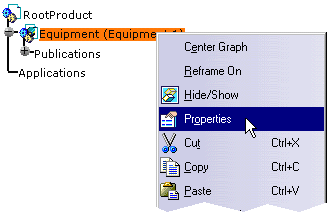
If you modify the attributes, the reference will be modified: - Equipment.CATProduct will be modified
- And all the occurrences of the component.

Notes:
-
This behavior is specific to the electrical properties.
-
When a product is activated (by double-clicking), editing the electrical properties operates in the same way as if the electrical properties were edited in the document in which the root product is the reference of the active product. (i.e. Equipment.1 in the RootProduct document against Equipment in the Equipment document.)
This definition is recursive within all the levels of instance.
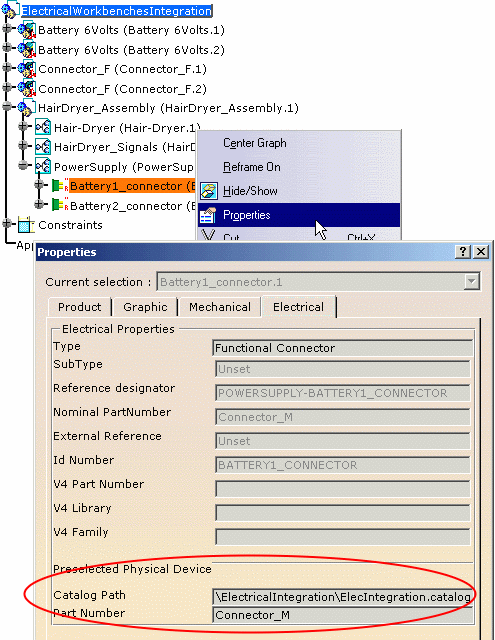
Functional equipments and connectors properties
- Catalog Path indicates the location of the catalog containing the physical component
- Part Number indicates the part number of the physical component.
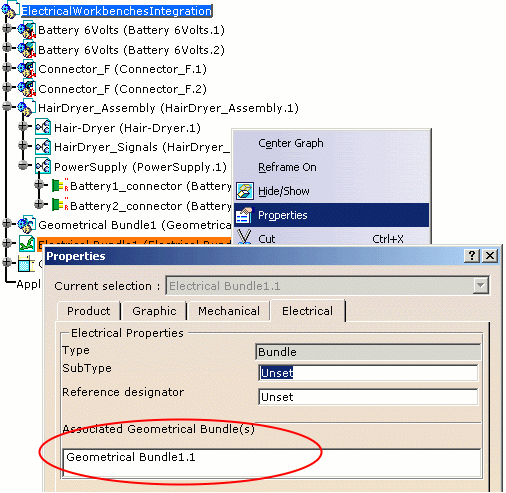
Electrical bundle properties
Bundle segment properties