
To perform the migration of the electrical data (geometry and technology), you first need to set up options for the:
These options can also be defined using:
- Tools > Options... > General > Compatibility > Migration Batch tab
- Tools > Options... > General > Compatibility > Electrical tab
- and Tools > Options > General > Compatibility > V4/V5 Space.
Refer to the Infrastructure User's Guide (Customizing Settings - General - Compatibility category).


To do so, you need to access to the Batch Monitor:
-
Select Tools > Utility...
The Batch Monitor window opens. -
Double-click the PLMV4ToV5Migration utility:
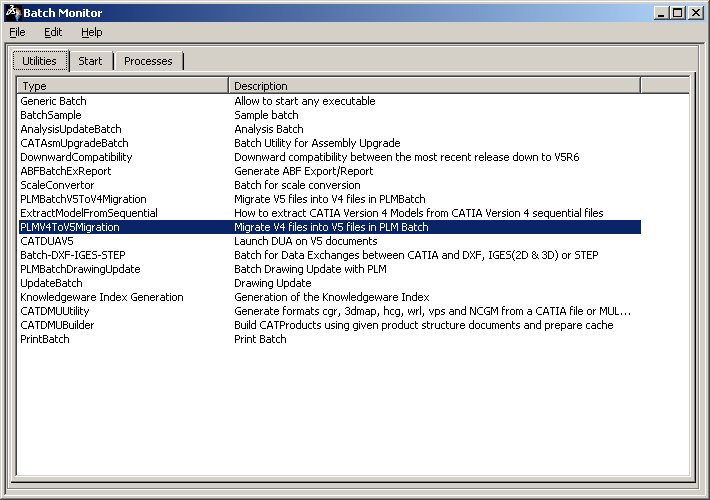
The PLMV4ToV5Migration dialog box opens. 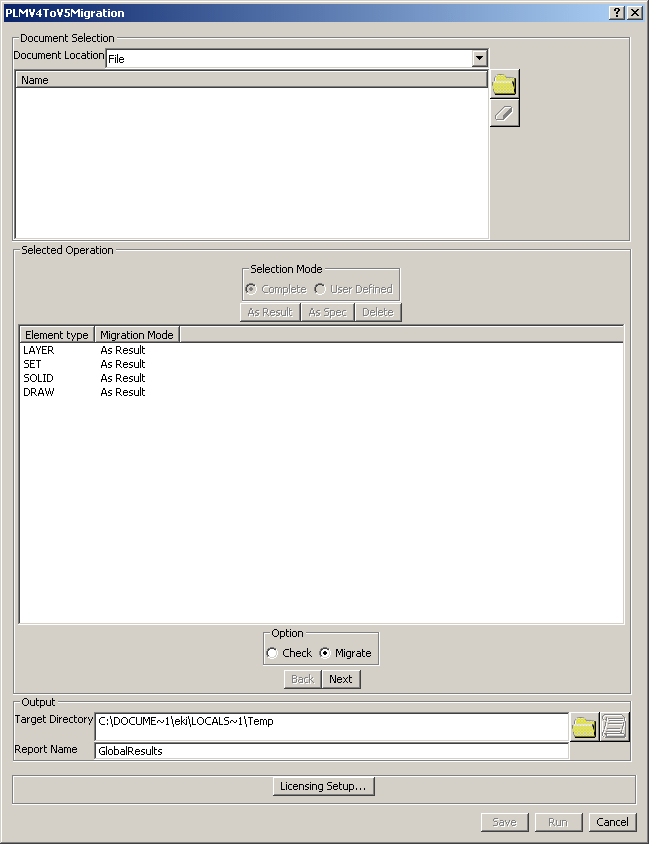
Setting up the Electrical Migration Batch
-
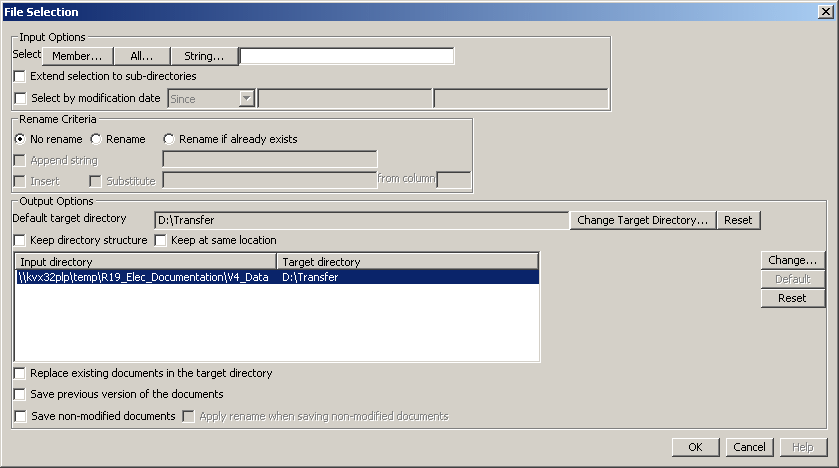
Click on the Browse button in the Document Selection section. The File Selection dialog box opens.
-
Click on the Member button.
|
|
|
Insure that all objects are set to 'AsSpec'as the migration as the migration is not supported by V4 electrical elements. |
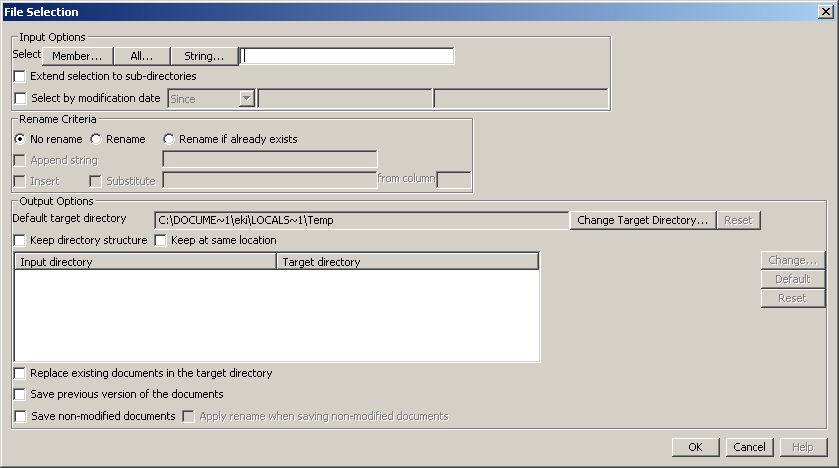
-
Select the file to be migrated from the File Selection dialog box and click Open.
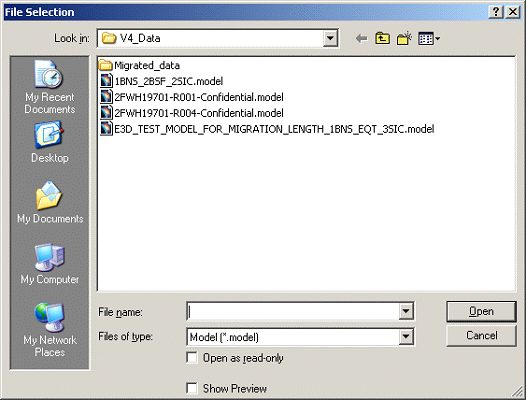
-
Click on the Change Target Directory button to specify the location of the Default target directory.
-
Select the Target directory location and click Default button.
-
Click OK in the File Selection dialog box.
-
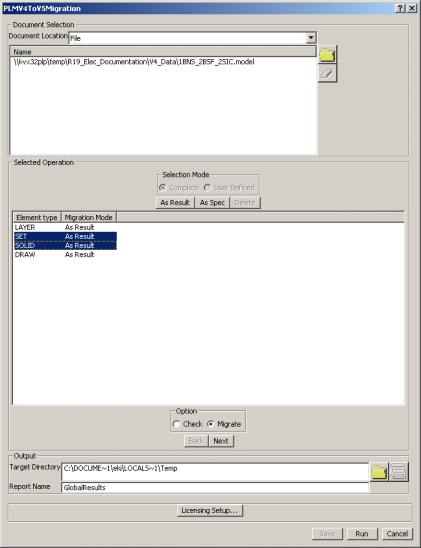
Change the Migration mode of SET and SOLID Element types as As Spec by clicking on the As Spec button in the PLMV4ToV5Migration dialog box.
-
Ensure that the Migrate radio button is checked.
-
Browse and specify the location of the Target Directory in the Output section and click Next button.
-
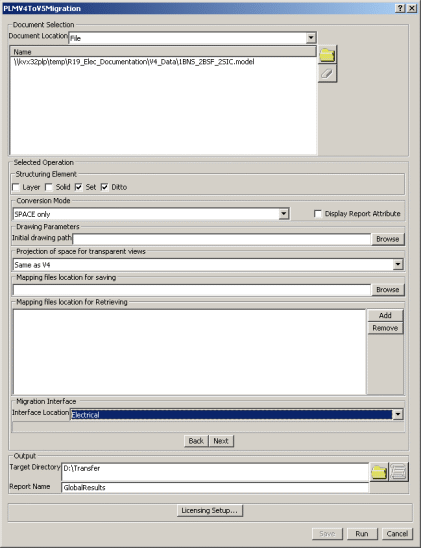
Check the Set and Ditto check boxes in the Structuring Element section of the PLMV4ToV5Migration dialog box.
-
Select the conversion mode as SPACE only from the Conversion mode list.
-
Select the Interface location as Electrical in the Migration Interface section of the PLMV4ToV5Migration dialog box.
-
Click Next
-
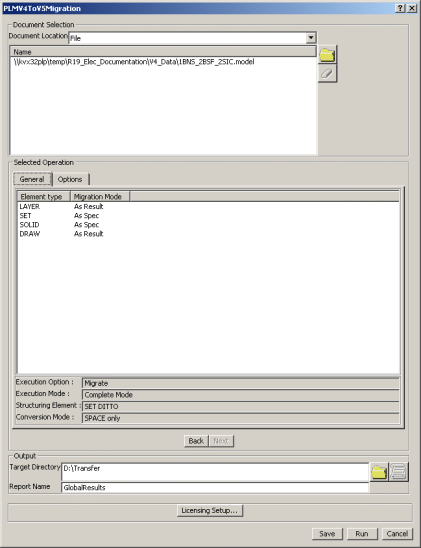
Click Run. When the migration is performed, you get the xxxxx.CATProduct in your target directory, as well as CATParts and other documents.
-
Open the xxxxx.CATProduct in CATIA V5.If the Update All icon is activated, you need to update your document.
Setting up the Geometrical Bundle Migration Mode
-
Still in the Interactive Options dialog box, select the Electrical tab.
This tab lets you define whether or not you want:
-
Each GBN migrated as a product in a separate CATProduct:
in this case, select Product.
 By default, Product is selected.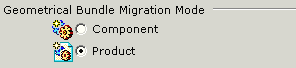
-
Each GBN migrated as a component under the root product:
in this case, select Component.

Choosing the right migration mode option is important since it determines how geometrical bundles will be stored in ENOVIA LCA: - Migrating them as products lets you store them in ENOVIA LCA using Workpackage mode
- Migrating them as components lets you store them in ENOVIA LCA using Explode mode.
-
-
Select the option of interest.
Setting up the Bundle Segment Migration Mode
-
Still in the Electrical tab.
This tab lets you define whether or not you want:
-
Each V4 BNS of the GBN migrated to a separate CATPart:
in this case, select Bundle segments.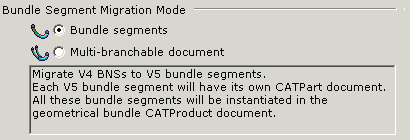
-
All the V4 BNSs of the GBN migrated to a single CATPart:
in this case, select Multi-branchable document.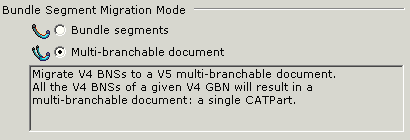 Multi-branchable document is the default value.
It is recommended to use this option as it reduces the number of CATPart documents generated during the migration.
-
-
Select the option of interest.
Setting up Isolated Mock-Up Solids migration
-
Still in the Interactive Options dialog box, select the V4/V5 SPACE tab.
This tab lets you define an option for the Isolated Mock-up Solids migration:
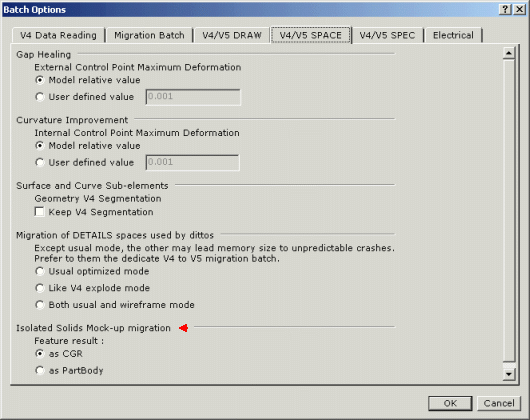
Isolated Mock-Up Solids (SolidM) means that they have no history nor specifications stored.
For the migration two options are available:
-
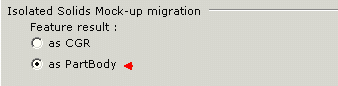
as CGR: the SolidM conversion as CGR means that you will only get the meshing view (visualization mode).
as CGR is the default value. -
as PartBody: the SolidM conversion as PartBody means that you will be able to see the geometry of the solid to edit it.
Refer to V4/V5 SPACE tab in Infrastructure User's Guide.
(Customizing Settings - General - Compatibility category). -
-
Select as PartBody in the context of the electrical migration to be able to add technology.
-
Once you have selected your options, click OK to validate.
You are back in the MigrateV4ToV5 dialog box. -
Select a target directory (where the V5 documents will be created).
-
Select the V4 documents to be converted.
You are ready to migrate your V4 electrical data.
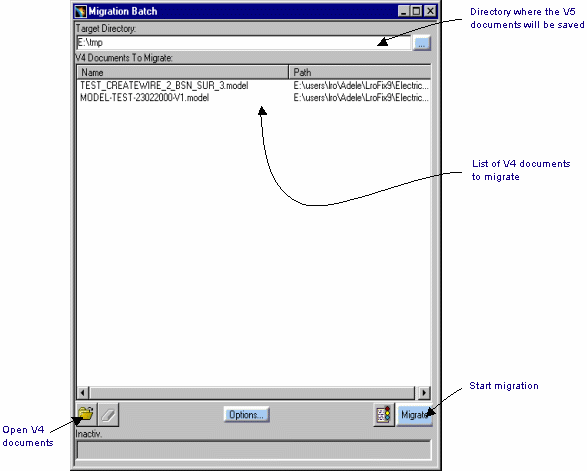 |
Select the files to migrate and the path for the result as explained in the utility documentation and run the batch.
