


-
Click 3D plane
 in the Tools
toolbar.
in the Tools
toolbar.
-
Select a line.
A plane is created on the selected line. The
created plane appears under the Outputs node in the Tree.
You can exit the Sketcher workbench to view the created
plane.
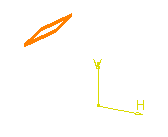
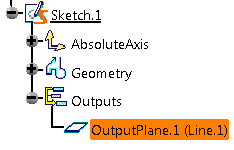

- You can also right-click the line in the Tree and select Line.x object > 3D Plane to create the 3D plane instantly.
- You can select multiple lines, and click 3D Plane in the Tools toolbar to create multiple 3D planes.
-
Optional: Change the reference element for the 3D plane.
- Click OutputPlane.y (Line.x) that is
displayed under the Outputs node in the Tree.
The Output Plane Definition dialog box appears.
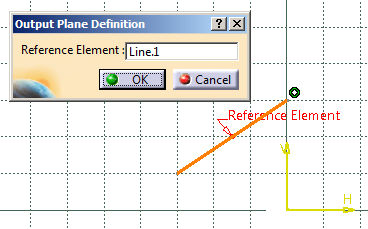
- Select a different line.
The name of the selected line appears in the Reference Element box and the 3D plane is created on the newly selected line.
- Click OutputPlane.y (Line.x) that is
displayed under the Outputs node in the Tree.
-
You can select the line in the 3D area and press DELETE to delete the created plane. Alternatively, you can right-click the line node displayed in the Tree and select Delete.
