Trimming
Splines and Connecting CurvesTrimming
Splines and Connecting Curves
Trimming
Splines and Connecting CurvesTrimming
Splines and Connecting Curves
 |
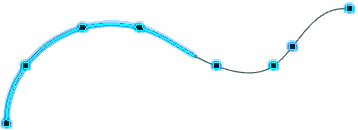
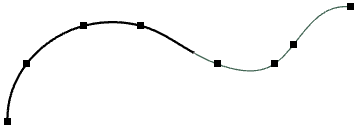
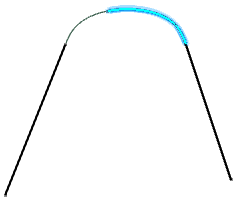
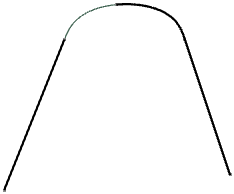
You can trim spline and connecting curves. The trimmed support curve is displayed by a thinner line. | ||||
Trim a Spline |
|||||
| You can trim a spline. The trimmed part is displayed by a thin line to clarify the original shape of the support curve. | |||||
 |
Sketch a profile containing a spline. | ||||
 |
|
||||
Trim a Connecting Curve |
|||||
| You can trim a connecting curve. The trimmed part is displayed by a thin line to clarify the original shape of the connecting curve. | |||||
|
|
Sketch a profile containing a connecting curve. | ||||
|
|
|
||||

 in the Operations toolbar.