


Trimming Both Lines
-
If not already selected, select the Trim All Elements
 .
.
-
Select the two lines.
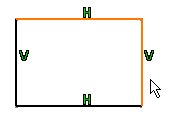
The two lines are joined by the rounded corner which moves as you move the cursor. This lets you vary the dimensions of the corner. -
Optional: Click Keep as default for next
 to keep the same radius value when creating other corners.
If you want to choose the different radius values for other corners, click the Keep as default for next
command again. -
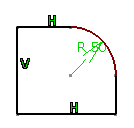
Enter the corner radius value in the Sketch tools toolbar: 22mm.
You can also click when you are satisfied with the corner dimensions. Both lines are trimmed at the points of tangency with the corner.
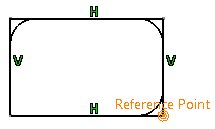
Note: When you create corners on multiple vertices: - You can see the preview of the corner at these vertices.
- All the corners have the same radius. To achieve different radii, select each vertex separately or edit the constraints.
- If any of the vertices is invalid (intersection of more than two lines) then corner is created on the valid vertices only.

Trimming the First Line
 .
.
-
Select the two lines.
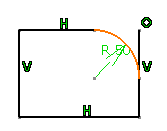
The first line is trimmed.
No Trimming
 .
.
-
Select the two lines.
The corner is created. No line is trimmed.
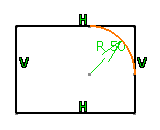
Trimming Both Lines Until their Intersection
 .
.
-
Select the two lines.
The corner is created. The trimmed lines are set as standard lines.
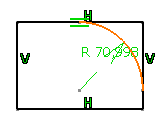
Trimming Both Lines and Creating Construction Lines Until their Intersection
 .
.
-
Select the two lines.
The corner is created. The trimmed lines are set
as construction lines.
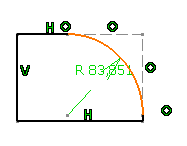
Trimming Both Lines and Creating Construction Lines
 .
.
-
Select the two lines.
The corner is created. The trimmed lines are set
as non-trimmed construction lines.
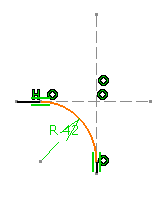
- By default, centers are created but if you do not need them you can specify this in the Options dialog box. For this, go to Tools > Options > Mechanical Design > Sketcher option (Sketcher tab).
- You can create corners between curves.
Optimizing the Operation By Multi-Selection
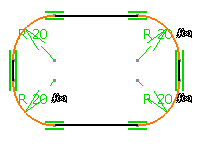
 displays the parameter driving the radius value of the corners you
have just created.
displays the parameter driving the radius value of the corners you
have just created.