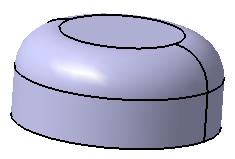
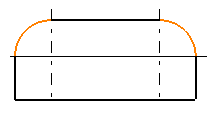
-
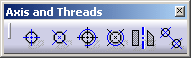
Click the drawing window, and click the Axis Line and Center Line icon
 from the Dress-up toolbar (Axis and Threads
sub-toolbar).
from the Dress-up toolbar (Axis and Threads
sub-toolbar).
-
Select two circles.
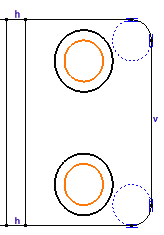
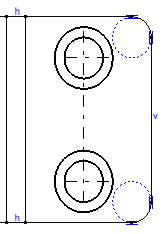
-
Select an axis line manipulator and drag it along a direction. You can notice that thread axis lines are modified symmetrically.


- When creating axes and center lines in a Generative Drafting context, a message will be displayed if axes and center line cannot be associative to the 3D.
- Associative center lines can be created for 3D objects such as
torus surfaces.