|
This function allows you to add frames and sub-frames to
texts and texts with leader.
|
 |
Create a
free text.
|
 |
-
Select the text you have created and click the Frame
icon
 in the Text Properties toolbar. The Frames sub-menu
is displayed.
in the Text Properties toolbar. The Frames sub-menu
is displayed.
|
|
-
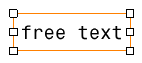
Choose a frame in the menu, scored circle, for example,
and click to select it.
|
|
-
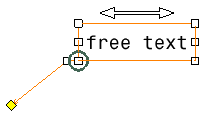
Right-click the text and select Add leader.
Click in the free space to end the
leader creation.
 |
You can zoom to make it easier to move the leader round the
text. |
|
| |
-
Right-click the hanged point.
A contextual menu is displayed, in which Standard Behavior is
selected by default. Selecting or deselecting this option drives how many
anchor points are available when moving the leader around the frame
(refer to the Frames Anchors Table below, Standard Behavior OFF
or Standard Behavior ON columns).
|
|
-
Drag the leader hanged point and see how it behaves
depending on whether Standard Behavior is selected or not.
-
Select a part of the text, for example "te", and do the
following:
- Double-click the text to edit it, the Text Editor
appears.
- Select "te" in the Text Editor or in the drawing.
|
-
Apply the Both Flag frame to the text.
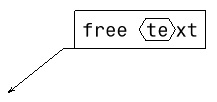
 |
You cannot use the following types of frames as sub-frames:
Sticking, Nota, Scored Rectangle, and all types of fixed-size frames. |
|
| |
-
To add color fill to the frame, select the Fill
Frame check box and select the required color from the list.
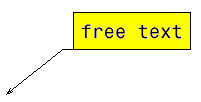
|
| |
-
To manage the margins between the text and its frame,
enter the required values in the Margin H and Margin V
boxes.
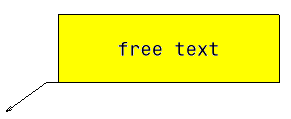
|
| |
|
|
About Frames and Sub-Frames
|
| |
Variable or Fixed Size Frames
|
|
 |
|
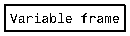
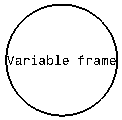
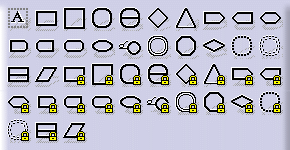
You can choose to create each frame with either a variable
or a fixed size. For a rectangular frame, for example, the icon
 represents the variable-size frame, and the icon
 (with the padlock) represents the fixed-size frame.
|
|
|
|
|
- Variable-size frames adapt to the text length, whereas fixed-size
frames always remain as is, no matter what the text length is. So if you
choose a fixed-size frame and the length of you text exceeds the frame
size, then the text will extend beyond the frame.
- Fixed frame sizes are defined in the standards. For more information,
refer to frames in Administration Tasks > Setting Standard Parameters and
Styles > Setting Standard Parameters.
- You can have multiple fixed sized frames. You can edit and manage
them in the standards. For more information, see
Changing Frame Sizes for Fixed
Frames.
|
|
|
|
Frames Anchors Table
|
|
|
| Type of frame |
Standard Behavior OFF |
Standard Behavior ON |
| Rectangle |
 |
         1       2       3
         o-------o-------o
       /                  \   4  o                     o 5
       \                  /
         o-------o-------o
|
         o-------o-------o
        /                  \     1 o                    o 2
        \                  /
         o-------o-------o
|
| Scored Rectangle |
 |
| Square |
 |
| Circle |
 |
             3
           __o__
        2 o     o 4
         |       |
       1 o       o 5
         |       |
        8 o     o 6
           --o--
             7
|
           __o__
          /     \
         |       |
       1 o       o 2
         |       |
          \     /
           --o--
|
| Scored Circle |
 |
| Set |
 |
| Fixed Support |
 |
| Sym Part |
 |
| Sym Set |
 |
| Diamond |
 |
              3
              o
             / \
         2 o     o 4
          /       \
       1 o         o 5
          \       /
         8 o     o 6
             \ /
              o
              7
|
              o
             / \
           o     o
          /       \
       1 o         o 2
          \       /
           o     o
             \ /
              o
|
| Nota |
 |
| Triangle |
 |
              3
              o
             / \
         2 o     o 4
          /       \
       1 o----o----o 5
              6
|
              o
             / \
           o     o
          /       \
       1 o---------o 2
|
| Right Flag |
 |
         1       2       3
         o-------o-------o
         |                 \
       4 o                  o 5
         |                 /
         o-------o-------o
         6       7       8
|
         o-------o-------o
         |                 \       1 o                  o 2
         |                 /
         o-------o-------o
|
| Right Oblong |
 |
| Left Flag |
 |
         1       2       3
         o-------o-------o
       /                 |
   4 o                   o 5
       \                 |
         o-------o-------o
         6       7       8
|
         o-------o-------o
        /                |
     1 o                 o 2
        \                |
         o-------o-------o
|
| Left Oblong |
 |
| Both Flag |
 |
         1       2       3
         o-------o-------o
       /                  \
   4  o                     o 5
       \                  /
         o-------o-------o
         6       7       8
|
         o-------o-------o
        /                  \     1 o                    o 2
        \                  /
         o-------o-------o
|
| Oblong |
 |
| Ellipse |
 |
| Sticking |
 |
1 o---------o 2
|
1 o---------o 2
|
|
Parallelogram |
|
        3        4        5
         o-------o-------o
       /                /
    2 o                o 6
     /                /
    o-------o-------o
   1        8        7
|
         o-------o-------o
       /                /
      o                o
     /                /
    o-------o-------o
   1                 2
|
|
|
|
|
|
|
Frame size
|
|
|
The size of frames depends on:
- Whether you use them as frames or sub-frames
- The height between the characters top and bottom, or cap and base
- The margins
Thus, a frame or a sub-frame might look different although the text to
which it is applied is identical. |
| |
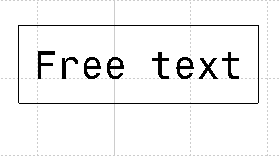
Example of frame. |
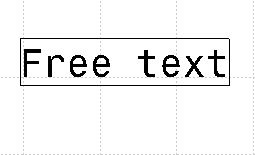
Example of sub-frame. |
|
|
|
|
|
Frame Color Fill and Frame Margins
|
|
|
You can create frame color fills and frame margins only for
global frames. |
|
|
Frame Color Fill
|
|
|
You can add color fill to the frames of annotations.
|
|
- You can fill only the text and balloon annotations.
- You can fill color only if the selected annotation has a
frame.
|
|
|
|
Frame Margins
|
|
|
You can manage the horizontal and vertical margins of a text annotation.
|
|
- The Margin H and Margin V boxes are
available only if the selected annotation frame type supports
either the horizontal, vertical, or both margins.
- Only the margins of variable frames can be managed.
|
|
|
 |