This procedure describes how to view non-hierarchical lists of:

Listing Products and Resources

-
Click List Products
 or List Resources
 on the Data Views toolbar.
You are prompted to select a process. -
Select a single activity, or select the top level process to view a list of all resources or products assigned to all processes.
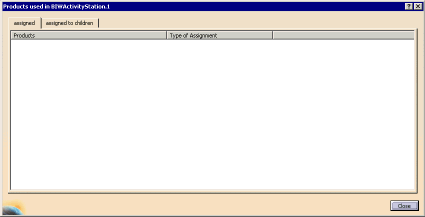
The Products Used in ... dialog box displays the products (or resources, if the List Resources
was selected)
used by the selected activity, as well as the type of assignment the product or resource has.
The Assigned to Children tab displays those products (or resources) used by children of the selected activity:
To view a long list of results, click each column heading to sort. -
Select an entry in the list to highlight it.
-
Right-click an entry to select Reframe On, Center Graph, or Hide/Show from the contextual menu.
-
Click Part Selection
 ;
the item selected appears in the Part Selection window.
;
the item selected appears in the Part Selection window.
Listing Unassigned Products
-
Click List Unassigned Products
 on the Data Views toolbar.
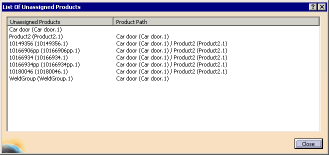
The List of Unassigned Products dialog box lists any products that are not assigned to an activity:
-
Select an entry in the list to highlight it.
-
Right-click an entry to select Reframe On, Center Graph, or Hide/Show from the contextual menu.
-
Click Part Selection
;
the item selected appears in the Part Selection window.
Listing the Associated Activities of a Product
The List Associated Activities of Product command allows you to select a product from the PPR tree and list all activities that use the selected item.
If the current project is defined within a Manufacturing Hub context, the query is performed on all processes belonging to the project currently opened in DPM, regardless of whether they are loaded in the current session. The user will be able to specify the type of part consumption relation (i.e., Process First Processes Product, Process Processes Product, etc.) that will be used for the query via the Part Consumption tab of the Tools > Options > DPM Process and Resource Definition options.
-
Select one or more parts from the PPR tree or the 3D window, or from a list of search results.
-
Click List Associated Activities
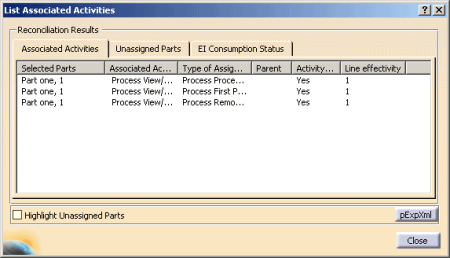
 to begin the query. The results are displayed in the List Associated Activities dialog box:
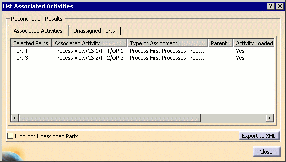
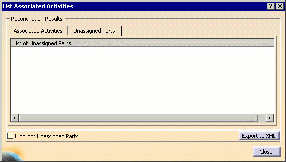
The List Associated Activities dialog box contains two tab pages.-
For each part, the Associated Activities tab (shown above) lists the activity that the part is assigned to, the type of relation for the assignment, the parent of the part (if the part is consumed through a parent subassembly or manufacturing assembly), whether the activity is currently loaded.
-
The Unassigned Parts tab lists any selected parts that are not assigned to any process plan with the set of relations defined in the Part Consumption tab of the Tools > Options > DPM Process and Resource Definition options.
The Highlight Unassigned Parts checkbox can be enabled to change the color of unassigned parts in the 3D window.
The Export to XML button creates an XML file describing parts that exist in process plans with relations as set in Tools > Options > Part Consumption tab page, as well as associated activities and their respective assignment types.
-
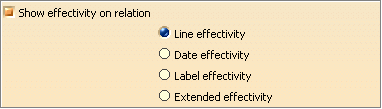
Exclusively for DPE-projects, you can display the following effectivities with the aid of the command List Associated Activities of Product.
-
Line effectivity
-
Date effectivity
-
Label effectivity
-
Extendend effectivity
Only the effectivities of the relations are considered.
The effectivities are displayed in the List Associated
Activities dialog in a new column; the example in the figure below shows
the line effectivity:
To display an effectivity in the dialog, select
Tools > Options > Digital Process for Manufacturing > Part Consumption >
Show effectivity on relation and the desired effectivty (Line
effectivity in the example). Only one effectivity can be shown at a time.
Highlight Unassigned Parts
You can set the selection color under Tools > Options > Digital Process for Manufacturing > Part Consumption > Highlight Unassigned Parts.
See Customizing: Part Consumption
If a product is not preselected in the tree, all products that are not linked with processes will be listed. If the pre-selected product is linked with a process, then products of the assigned structure are also not listed in the dialog, even if these products do not have links to processes.
If you have preselected a product in the tree that does not have linkage to a process, then the following aspects will be taken into account for this product:
-
Is this product assigned to a structure (direct parent/child relationship) along with other products that are not linked with a process, then these products are listed.
-
If this product is not assigned to a structure, then the preselected product should be listed.
-
You can select a product in the tree and in the 3D Graphic.
-
To highlight a product in the 3D Graphic with the selected color, select the Highlight Unassigned Parts check box.
-
To reverse your selection clear the Highlight Unassigned Parts check box.
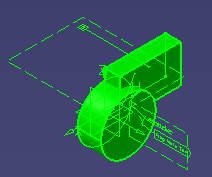
The picture below shows products that are highlighted with the selection color.
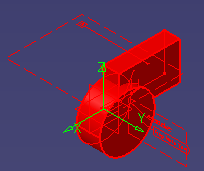
Changing the selection color to green, produces these results.
Listing Associated Activities of a Resource
-
Click List Associated Activities of Resource
 on the Data Views toolbar.
 -
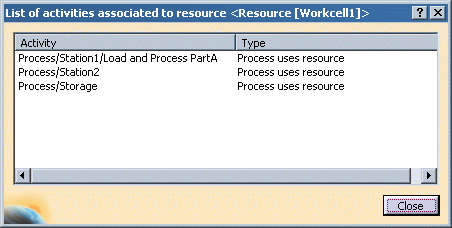
Select a resource from the PPR tree. A dialog box appears with a list of activities that use the selected resource and indicates the relation type for the resource:
-
Double-click any entry in the resulting list of activities to highlight the selected activity and center its view within the PPR tree.
Listing Hyperlinks
Click List Hyperlinks
 .
.
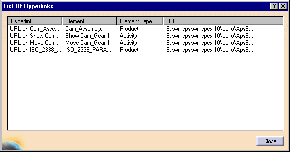
The List of Hyperlinks dialog box appears. An
example is shown: