|
|
-
Right-click on a node within the Gantt chart and
select Search in Gantt Viewer.
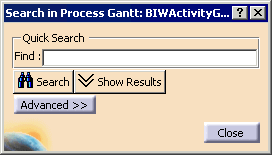
The Search in Gantt: Quick Search dialog box appears.
-
Click Show Results and enter text
(e.g., Activity).
| The Search in Gantt dialog box
appears. |
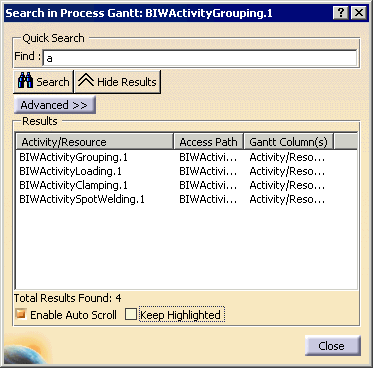 |
| As you enter text, the maximum number of results appear and
become more refined as you enter more text. For example,
if you type activity, as you type the initial a,
you see all words with the letter a in them; as you
enter more letters, the search is refined accordingly. The
case is irrelevant. |
- When Enable Auto Scroll is selected (it is by
default), if a leaf was not visible because the view of the
Gantt chart was not expanded, the chart expands to show leaves
that appear in the search.
- When Keep Highlighted is selected, items that are
highlighted in the Gantt because they were selected in the Search Results stay highlighted when the
Search in
Gantt dialog box is closed or when you click the Hide
Results button.
|
-
Select one or more items in the Results
list; the items are highlighted in the Gantt.
-
Click Advanced.
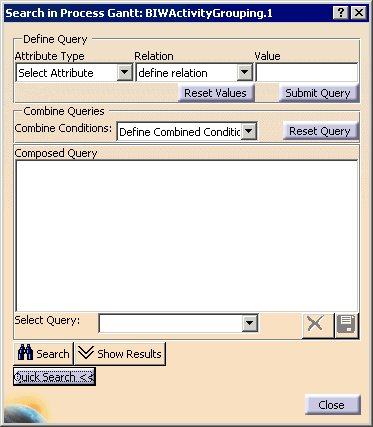
The Search in Gantt: Advanced dialog box appears.
-
From the Attribute Type list, select an
attribute.
The attributes listed are those in the Gantt chart (e.g.,
SCT Duration).
-
From Relation, select a relation
between the attribute and the value.
The available relations for numeric
attributes are:
- equals
- does not equal
- is less than
- is less than or equal to
- is greater than
- is greater than or equal to
|
The available relations for text (i.e.,
string) attributes are:
- equals
- does not equal
- contains
- matches exactly
- contains exactly
|
-
Enter a value in the Value box.
-
Click the Submit Query button.
The query appears in the Composed Query box.
-
Is this the only search query you want to make?
- If NO, then go to next step.
- If YES, then go to
click Search.
|
-
Select a Combined Condition.
| The available conditions are:
|
-
Create another query using the Define Query
box and select another combination.
-
Right-click on one of the queries in the
Composed Query box and select Edit.
The query appears in the the Define Query box.
-
Modify the query and click the Submit Query
button.
The modified query replaces the original in the Composed
Query box. Any other queries and combined conditions in
the box remain unchanged.
 |
You can also change the combined condition
by right-clicking on one (e.g., AND) in the Composed
Query box and selecting the other condition
(e.g., OR). |
-
Click Search.
The search results appear.
-
Click Close.
|
|
|
-
Right-click on a node within the Gantt chart,
select Search in Gantt Viewer, and click Advanced.
-
In the Define Query area, create a
query, and click Submit Query.
-
Click
 . .
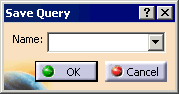
| The Save Query dialog box
appears. |
 |
-
Enter a name (e.g., SCT_Less_Than_50) and click
OK.
|
|
This query is saved as part of the .CATProcess
file and can be used in any subsequent search of
the Gantt chart. To remove the query from the .CATProcess
file, click
 . . |
-
Click Reset Query to clear the
Composed Query box.
-
Create a combined query.
-
Right-click on one of the sub-queries in the Composed
Query box and select Remove.
-
From the Select Query box, select the
query you created.
The selected query replaces the deleted sub-query.
|
 Searching the Gantt Chart


