

The Part_01.CATPart document will be used in this scenario.

-
Switch to the 3D Functional Tolerancing & Annotation workbench.
Click Text with Leader and pick the part.
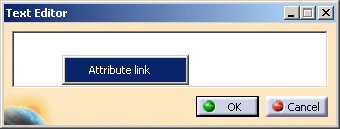
The Text Editor dialog box is displayed.
Right-click the text field and select Attribute link.
-
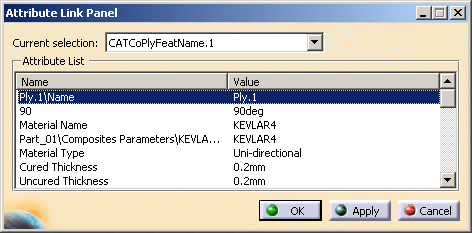
Select the feature that you want to link to the annotation.
We have selected Ply.1. -
Select the attribute you want to link from the list that is displayed:
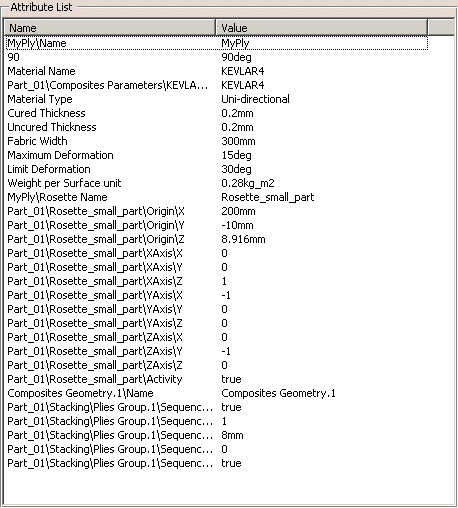
The complete list looks like this:
-
The annotation is created with the name of the ply:
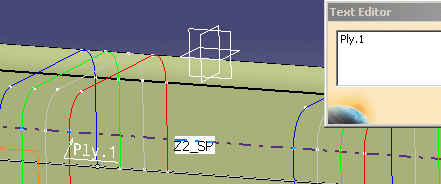
Click OK in the Text Editor dialog box to validate it.
In the specification tree, change the name of Ply.1 to MyPly.
The annotation is updated automatically:
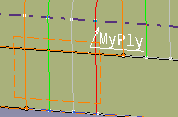

- Depending on what you have picked, you can create links to the
following Composites Design features and create annotations:
- Zone Group Feature Name
- Zone Feature Name
- Zone Laminate Data
- Materials used (Material1 Material2…)(*)
- Ply count data in industry standard shorthand (Material1:#dir1 / #dir2 / #dir3 / #dir4, …) (*)
- Ply Group Feature Name
- Sequence Feature Name
- Ply Feature Name
- Ply Orientation
- Ply Rosette Axis Feature Name
- Core Sample Feature Name
- Core Sample Results
- Thickness
- Number of Plies
- List of plies pierced (PlyGroupName/SequenceName/PlyName …)(*)
- For attributes marked with a (*), the result will be added as a single
string with some blanks between each ‘pseudo line’ of information.
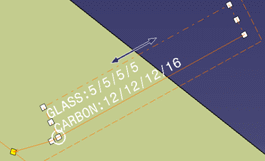
Resize the annotation to get a nicer look!
For instance, if you create a link to a Laminate ply count with the attribute equal to “GLASS:5/5/5/5 CARBON:12/12/12/16”,
the annotation will look like this:
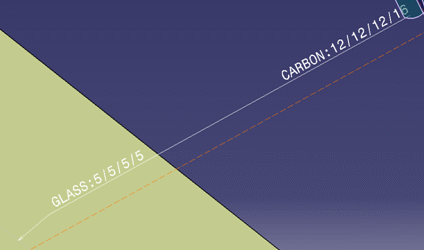
or like this after you have resized it:
- The Rosette name is not associative:
- If you modify the name of the rosette, the annotation is not updated,
- If you change the rosette of a ply (by selecting another one), the annotation is not updated.
You must update the annotation manually.
